Vivimate IPTV on iPhone, iPad or Apple TV — setup guide
Vivimate on iOS keeps this short. Smarters Player Lite is straight from the App Store, so there is nothing to jailbreak or sideload. Install it, enter the Vivimate details we send, and the same login works across your iPhone, iPad and Apple TV.
Install Smarters Player Lite
Straight from the App Store, so there is nothing to jailbreak or sideload. The same app covers iPhone, iPad and Apple TV.
- 1
Install Smarters Player Lite
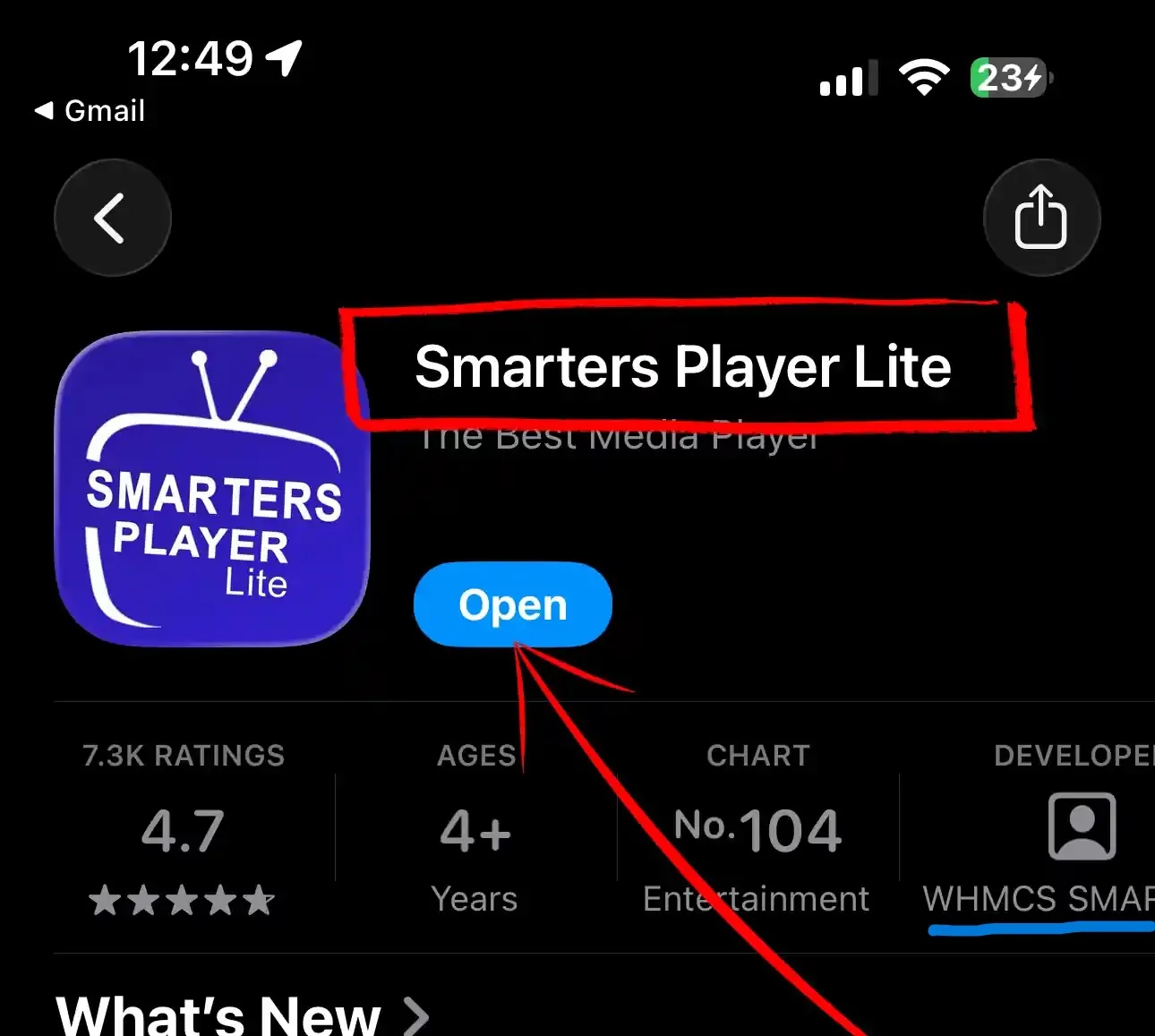
Open the App Store on your iPhone, iPad or Apple TV and search "Smarters Player Lite". Install the one by WHMCS Smarters, not one of the copycats with a similar name. It is free.
- 2
Open the app
Launch it. You get a short splash screen for a couple of seconds while it starts up, then it drops you on the playlist screen on its own.

Add your Vivimate playlist
Pick the type that matches our setup message and type in the details. Three taps and the channels start coming.
- 3
Tap Add Playlist
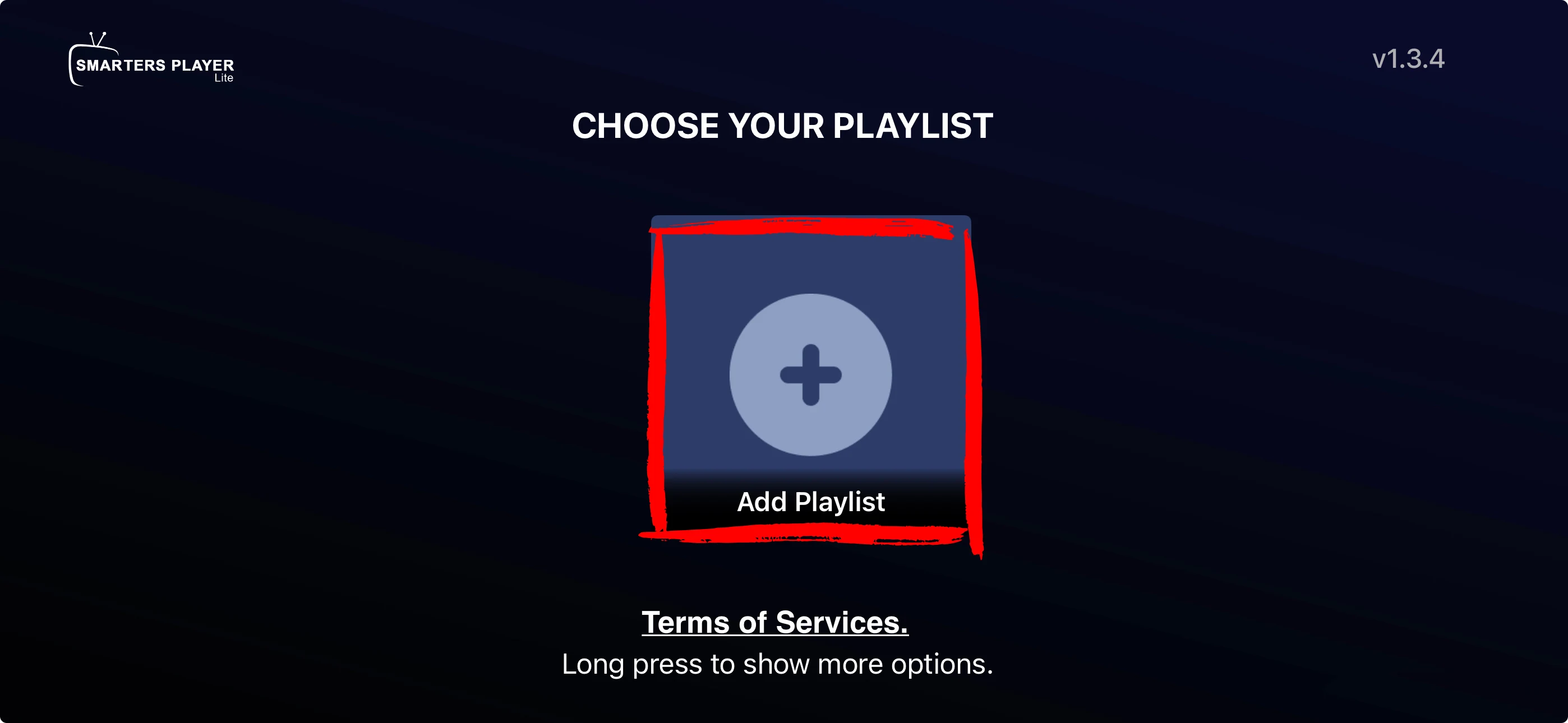
On the Choose Your Playlist screen, tap the Add Playlist tile. That is where your Vivimate details go in.
- 4
Choose Xtream Code
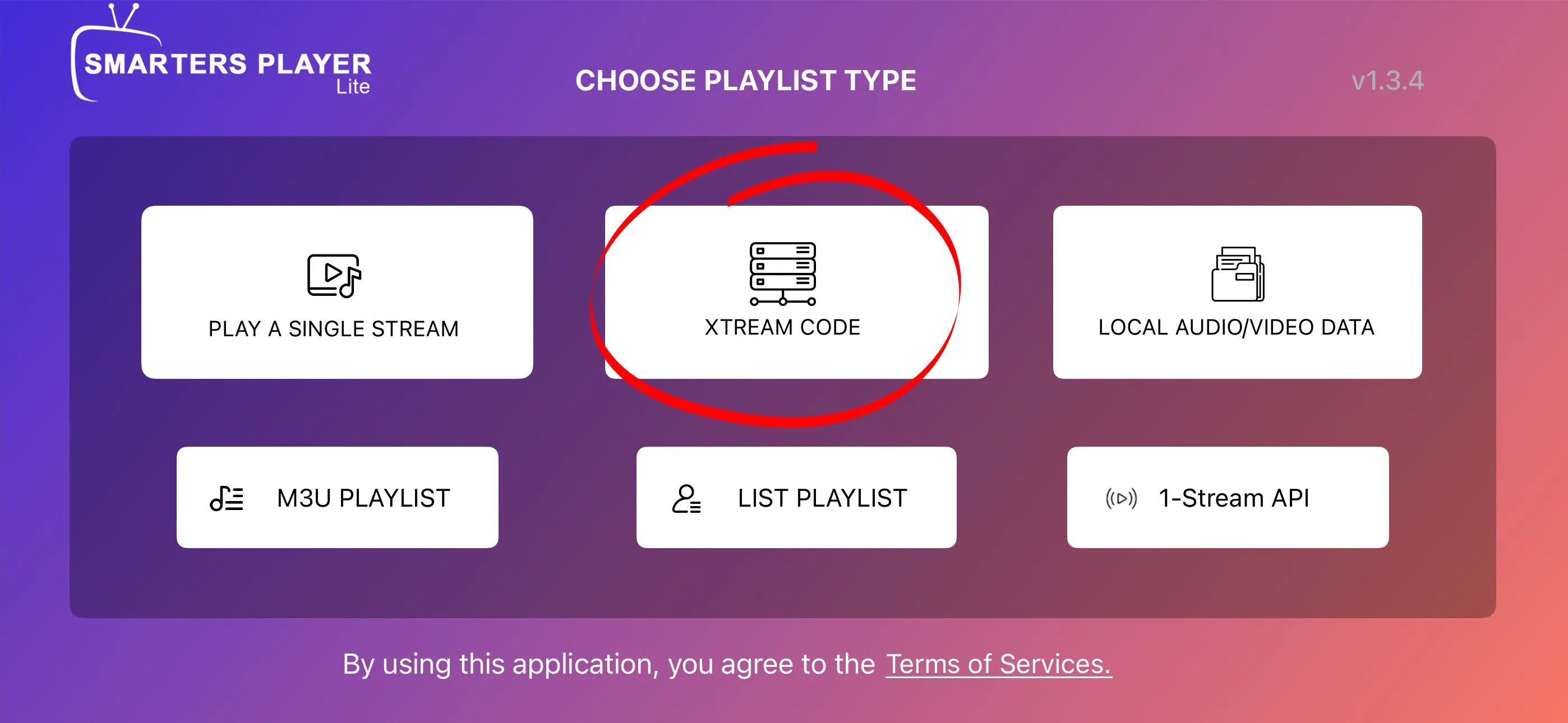
From the list of types, pick Xtream Code. That is the right one for the server, username and password we send you. If you only have an M3U link, choose M3U Playlist instead.
- 5
Enter your details
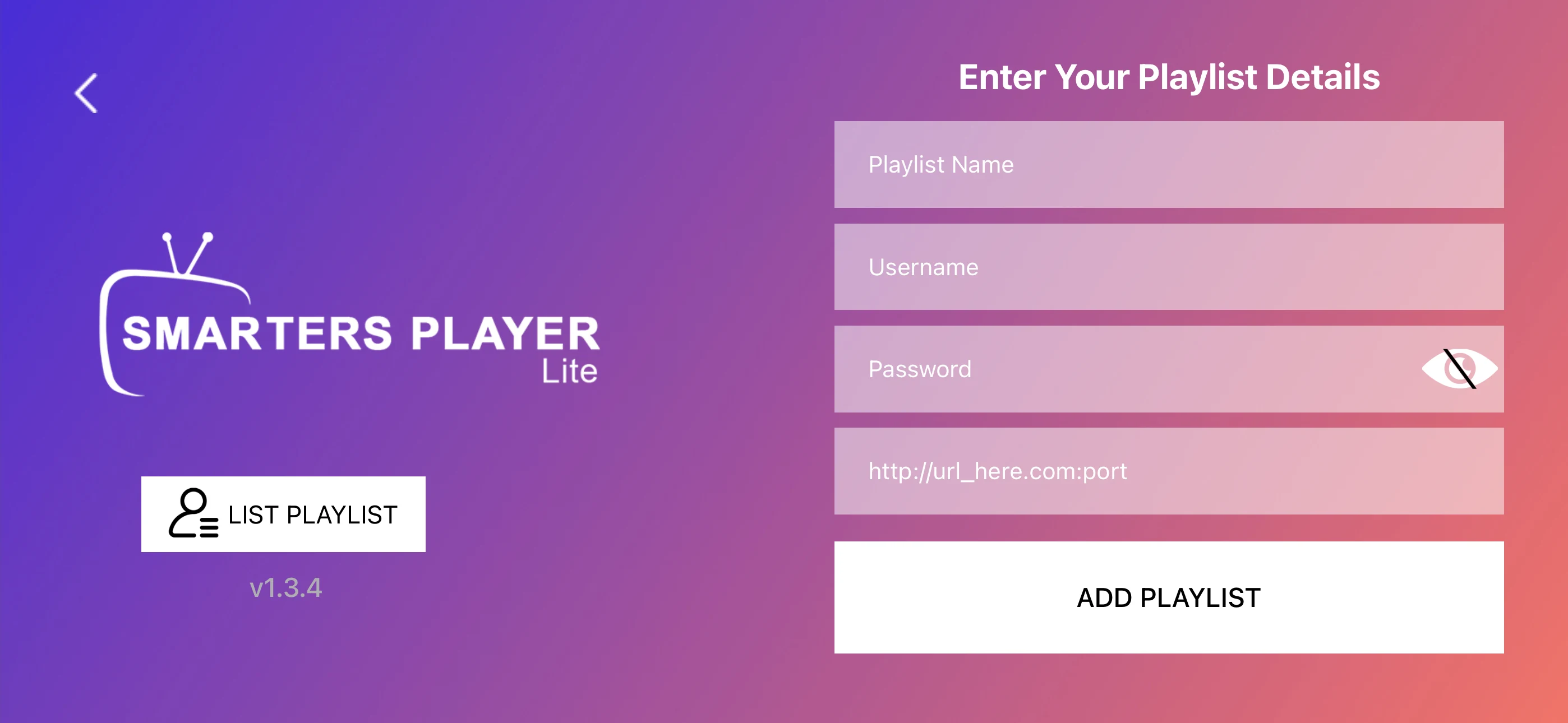
Give the playlist a name, then type in the server address, username and password from your Vivimate setup message. Tap Add User.
Let it load and watch
Leave it open while the channels and guide come in, then you are straight into Live TV.
- 6
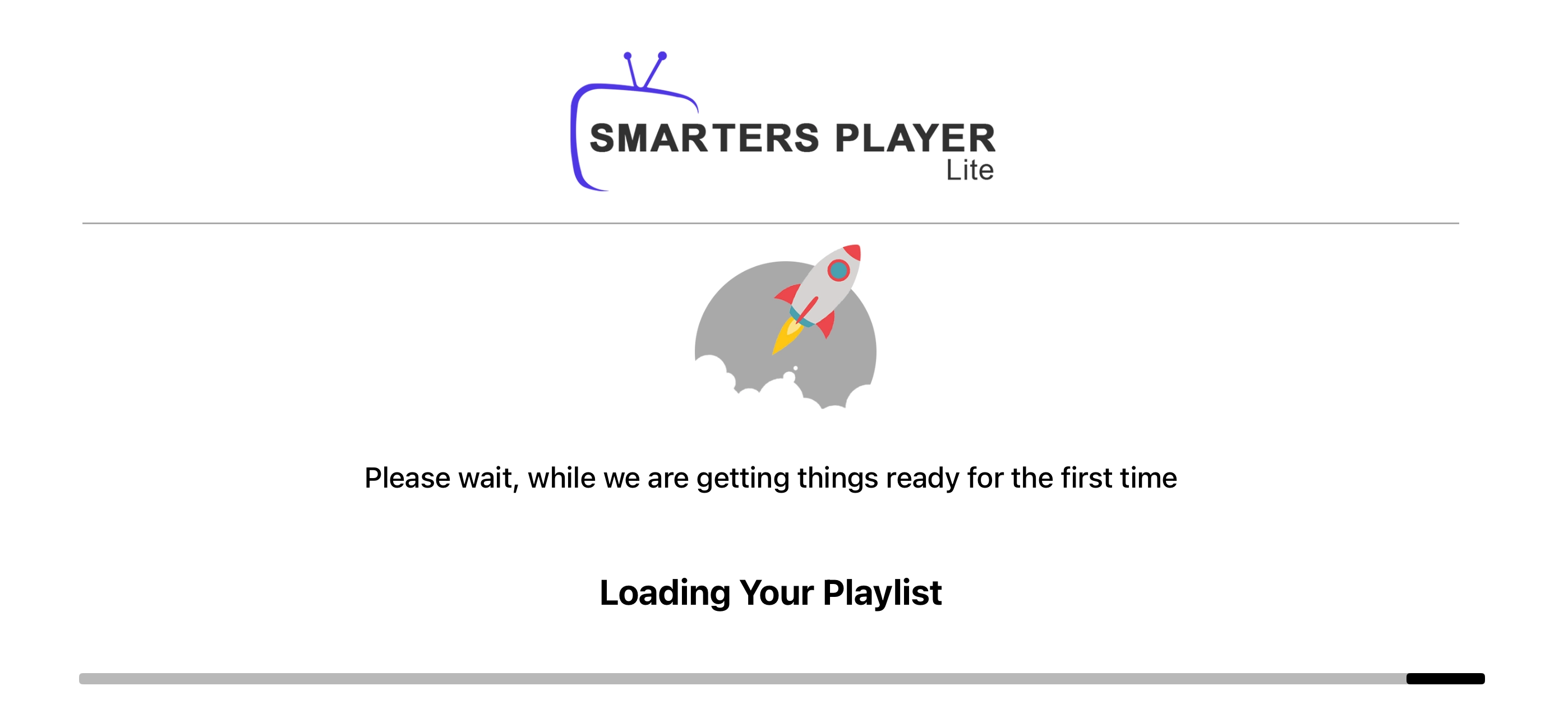
Let it load
The app pulls in your channels and guide, usually in under a minute or two. Leave it open while the bar fills. When it finishes, tap Live TV and you are watching.
No subscription yet?
Your device is ready. Add the channels.
12,000+ live channels and 40,000+ on-demand titles, one price, no auto-renewal.
Setting up on another device?
Same playlist, a different screen. Pick the one you're using.
Got a question while setting up?
Message us your device and what you're seeing. We'll sort it, no charge.