How to set up Vivimate IPTV on Android TV or a TV box
On most Android TV boxes TiViMate is a straight Play Store install. A few devices, mainly Google TV sticks and Chromecast, block it, so for those you sideload through Downloader. We cover both, then it's the same playlist either way.
Install TiViMate
On most boxes TiViMate is a straight Play Store install. A few Google TV and Chromecast devices block it, and Part 2 covers those.
- 1
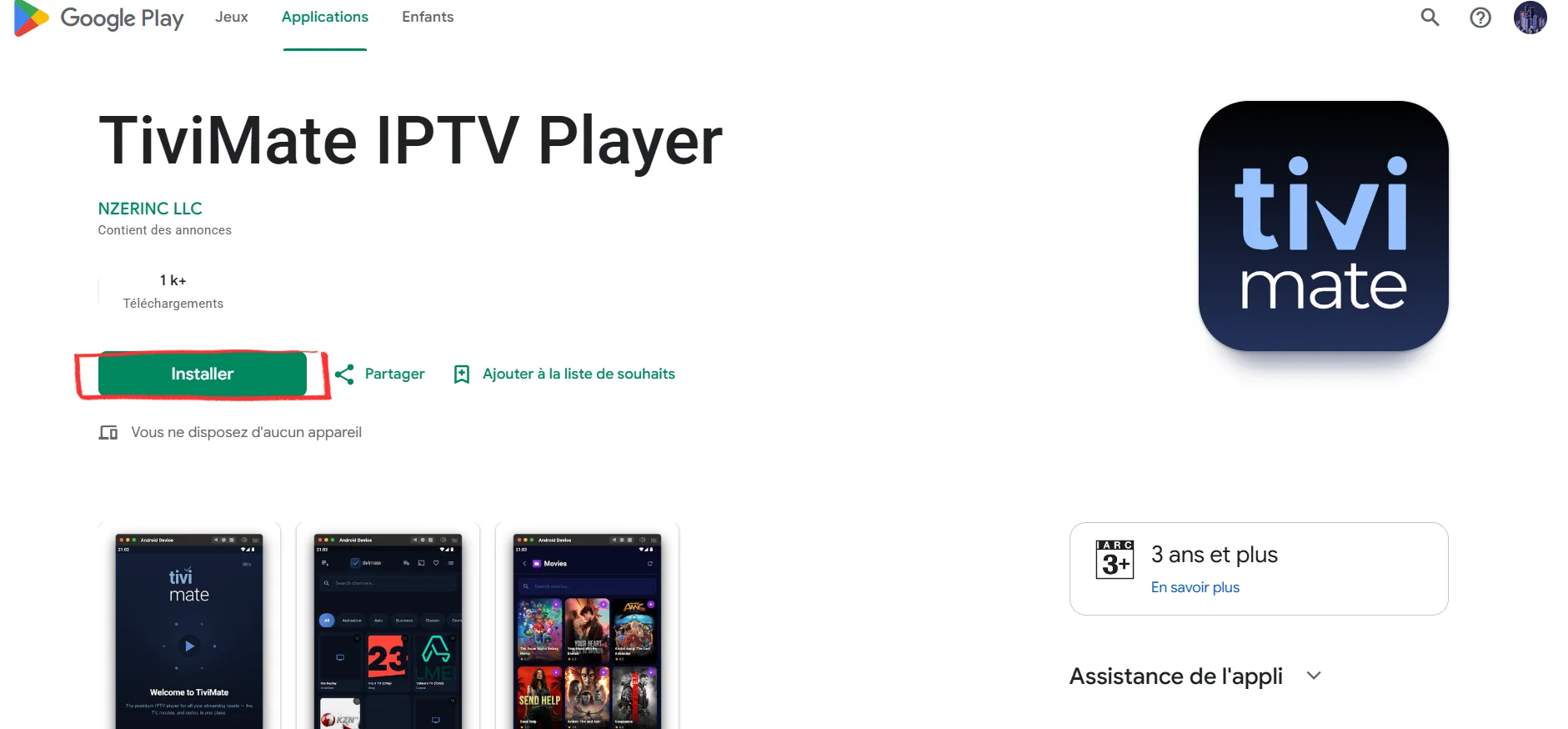
Install TiViMate from Google Play
Open the Play Store on your box, search "TiViMate IPTV Player" and install the one by NZERINC LLC. On a Shield, Mi Box or most Android TVs it is right there.
- 2
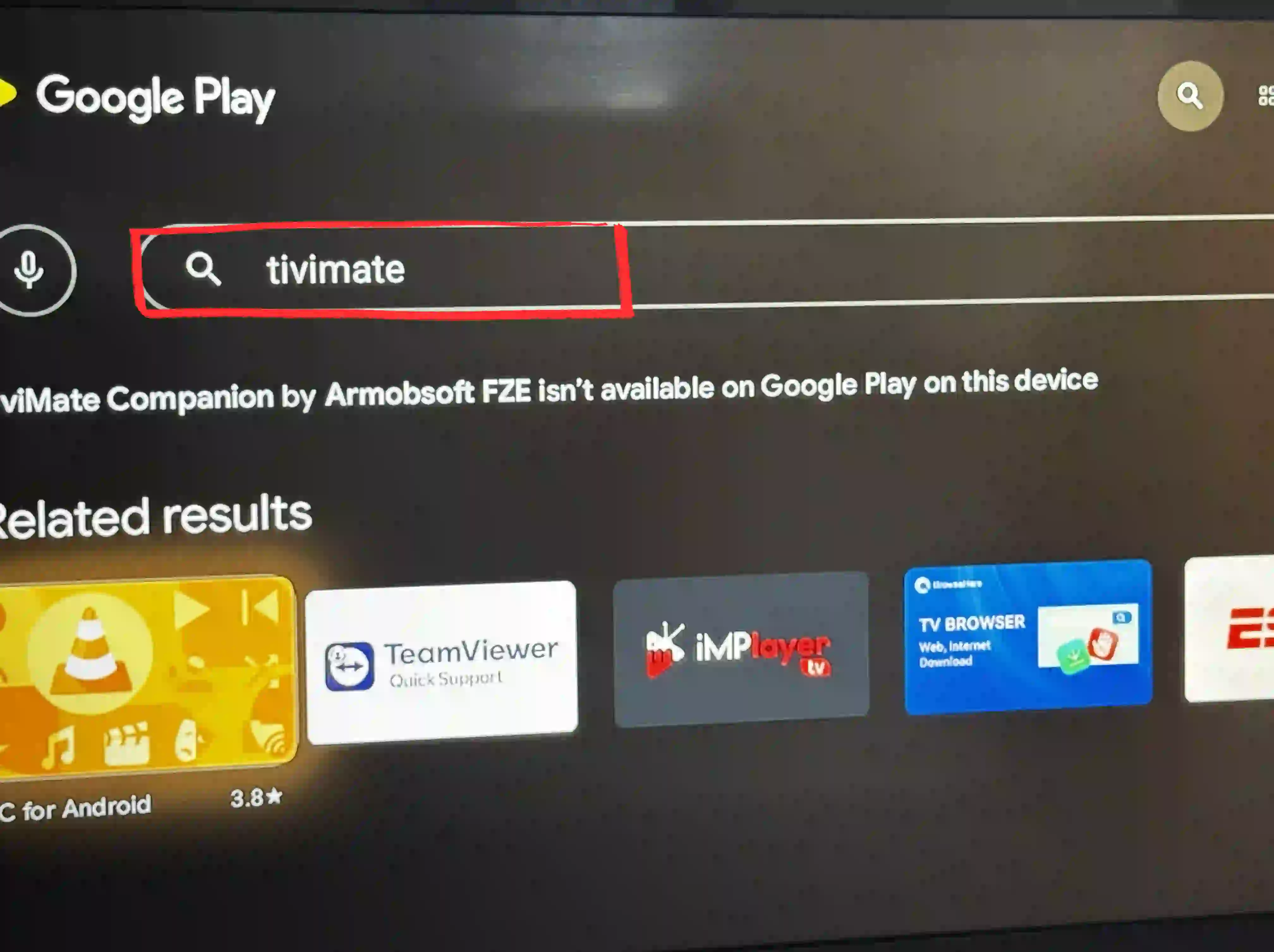
Says it's not available? Do Part 2
Some Google TV and Chromecast devices show "not available". If that is you, do Part 2 to sideload it. If TiViMate installed fine, skip straight to Part 3.
Blocked? Sideload with Downloader
Only if the Play Store blocked TiViMate. The Downloader app fetches the file with one short code, and you never have to do it again.
- 3
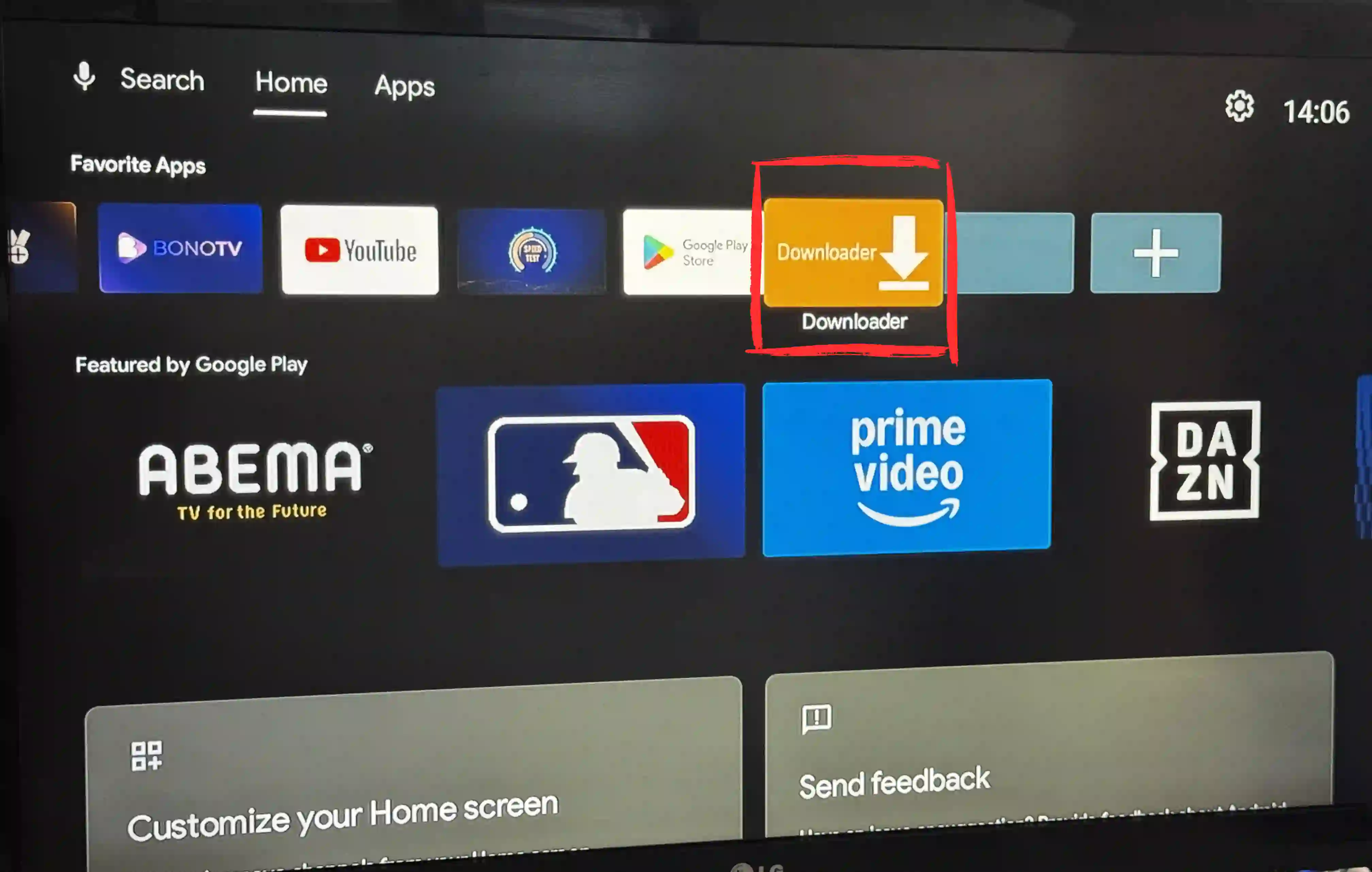
Install the Downloader app
Open the Play Store and search "Downloader". The orange icon by AFTVnews shows up in Popular Apps. Install it, then open it.
- 4
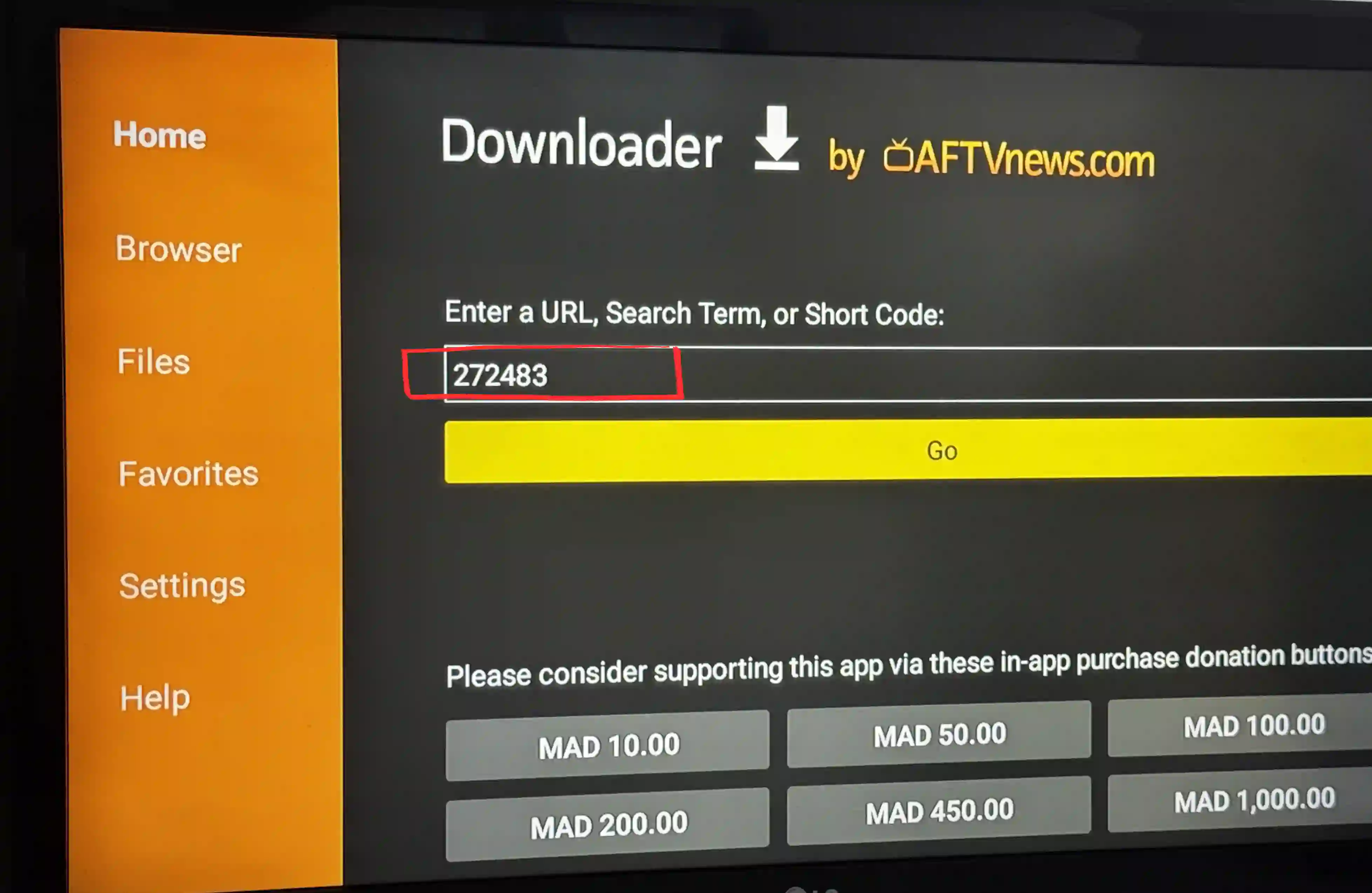
Enter the TiViMate code
In the Downloader URL box, type 272483 and press Go. It finds the TiViMate file and downloads it. When the install popup shows, press Install.
Add your playlist and watch
Same finish whichever route you took. Type in the details we send and TiViMate loads your channels.
- 5
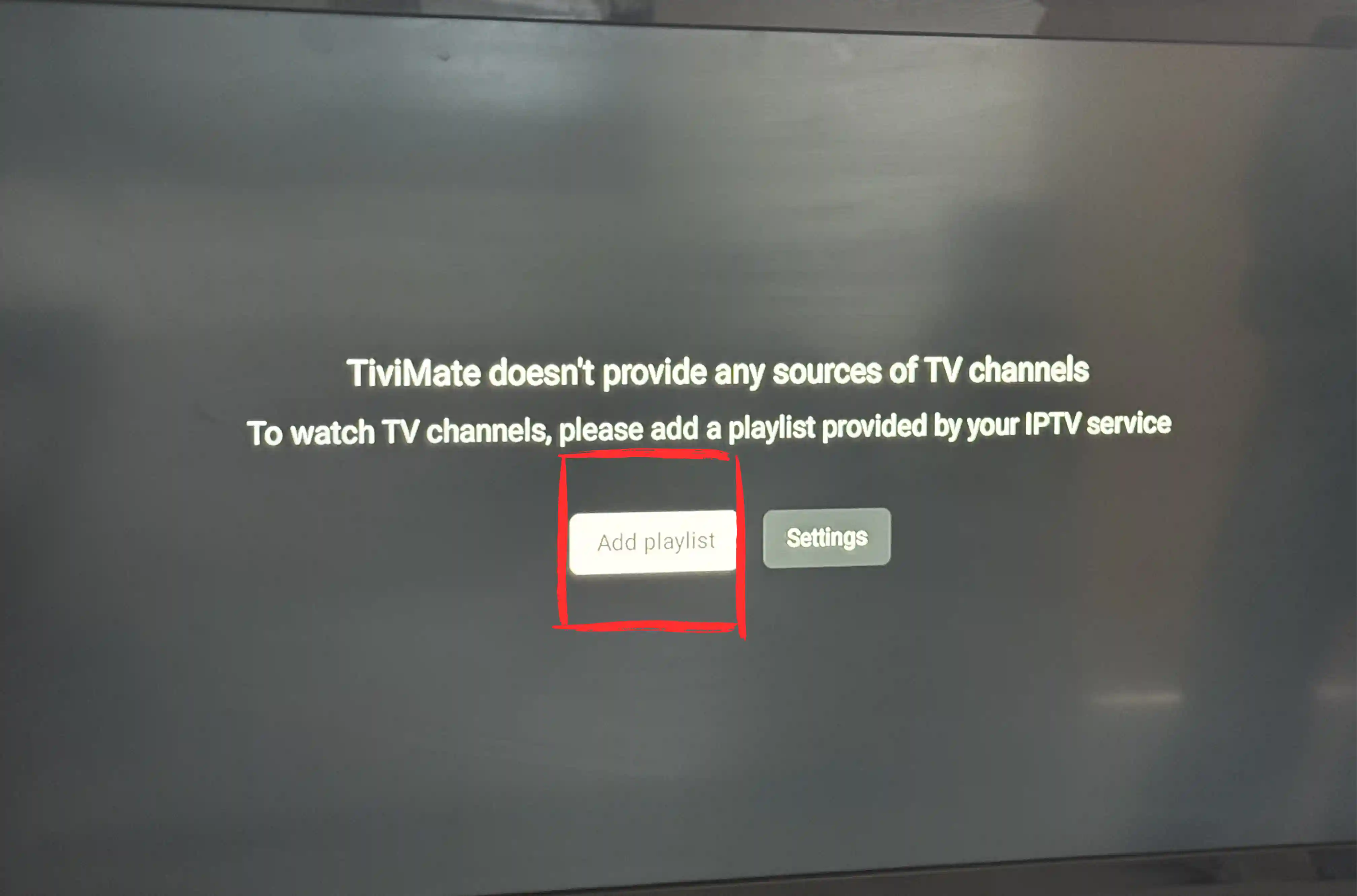
Open TiViMate and tap Add Playlist
On first run TiViMate says it has no channels of its own. That is normal, it is just a player. Press Add Playlist to connect your Vivimate subscription.
- 6
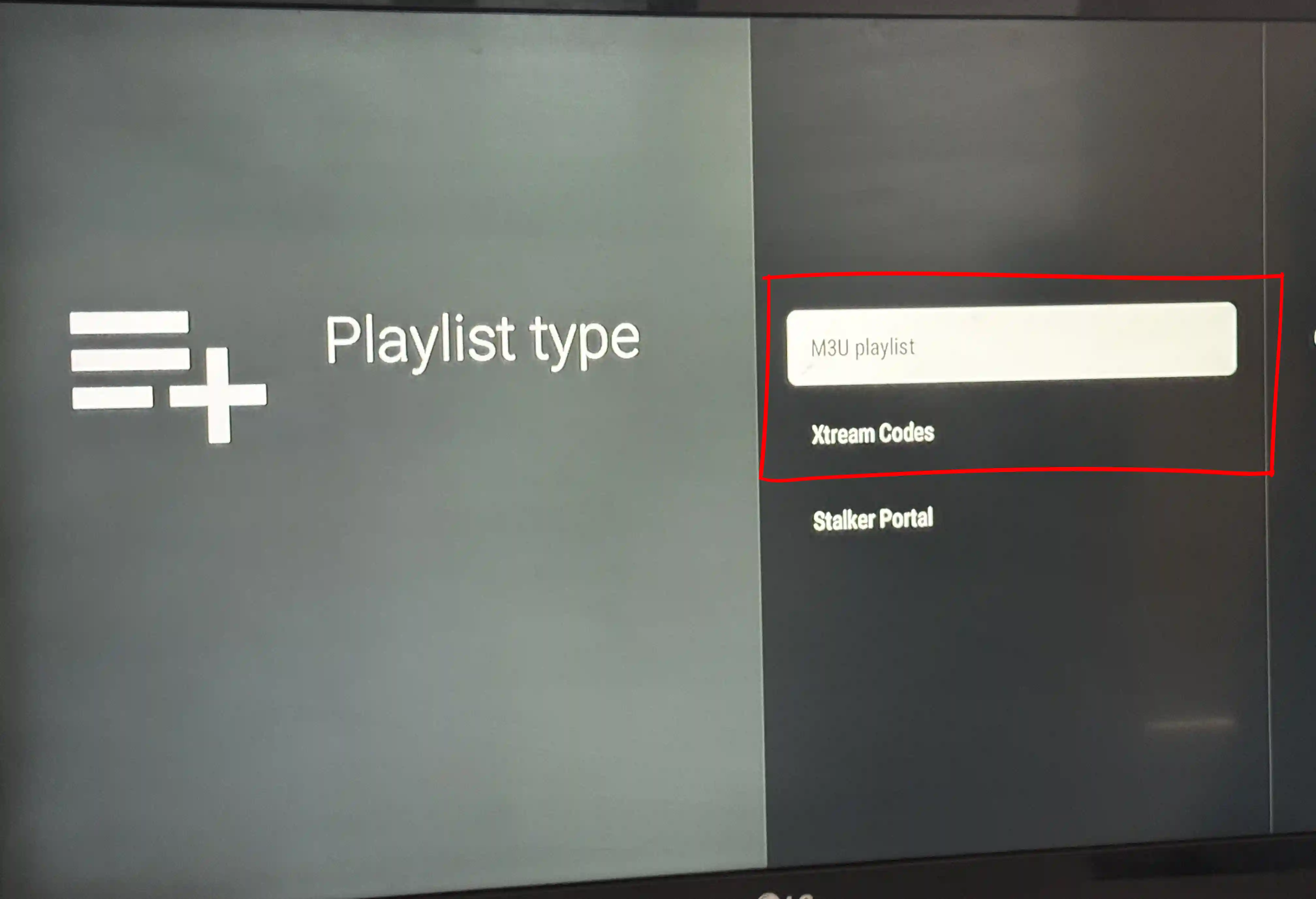
Enter your Vivimate details
Pick the type that matches what we sent you, enter the details and press Done. The channels load in a minute or two. Our setup message tells you which type to pick.
How to set up TiViMate Premium
Free gets you in and playing, but you hit walls fast. The guide shows up empty, EPG settings are locked, and the app skin is fixed. Anything beyond basic playback (a second playlist, recordings, multi-view) needs Premium. You pay TiViMate directly, not us. Here is how to get it set up.
Billed once a year. A good starting point if you're not sure you'll use the extra features long-term.
Cheaper than four years of the annual plan. One payment, no renewals, locked in if the price goes up.
A single licence works across up to 5 devices.
How to get TiViMate Premium
- 1
Get your licence on tivimate.com
Head to tivimate.com and create a free account if you don't have one. Pick Annual or Lifetime and check out.
- 2
Activate on your Android TV
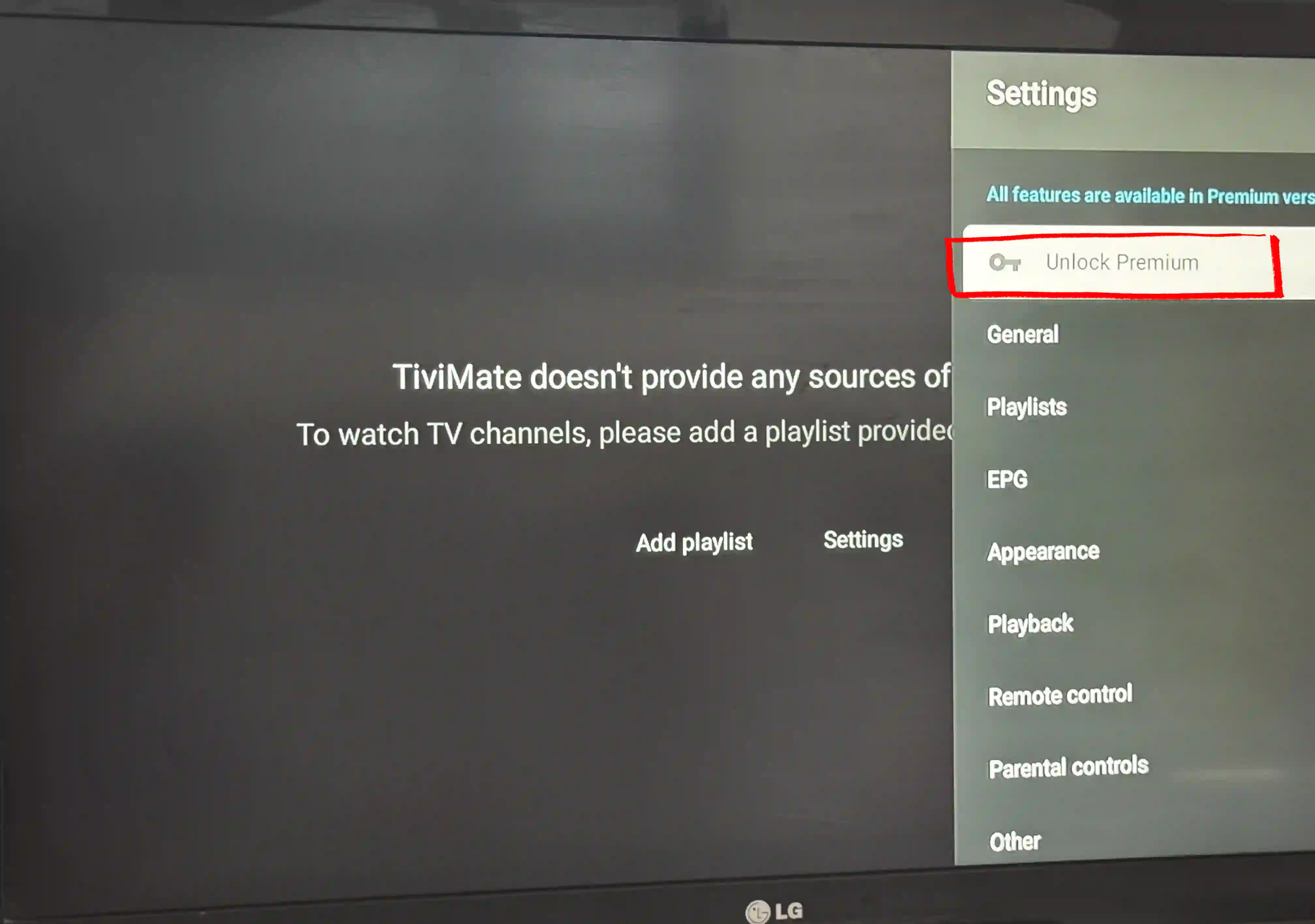
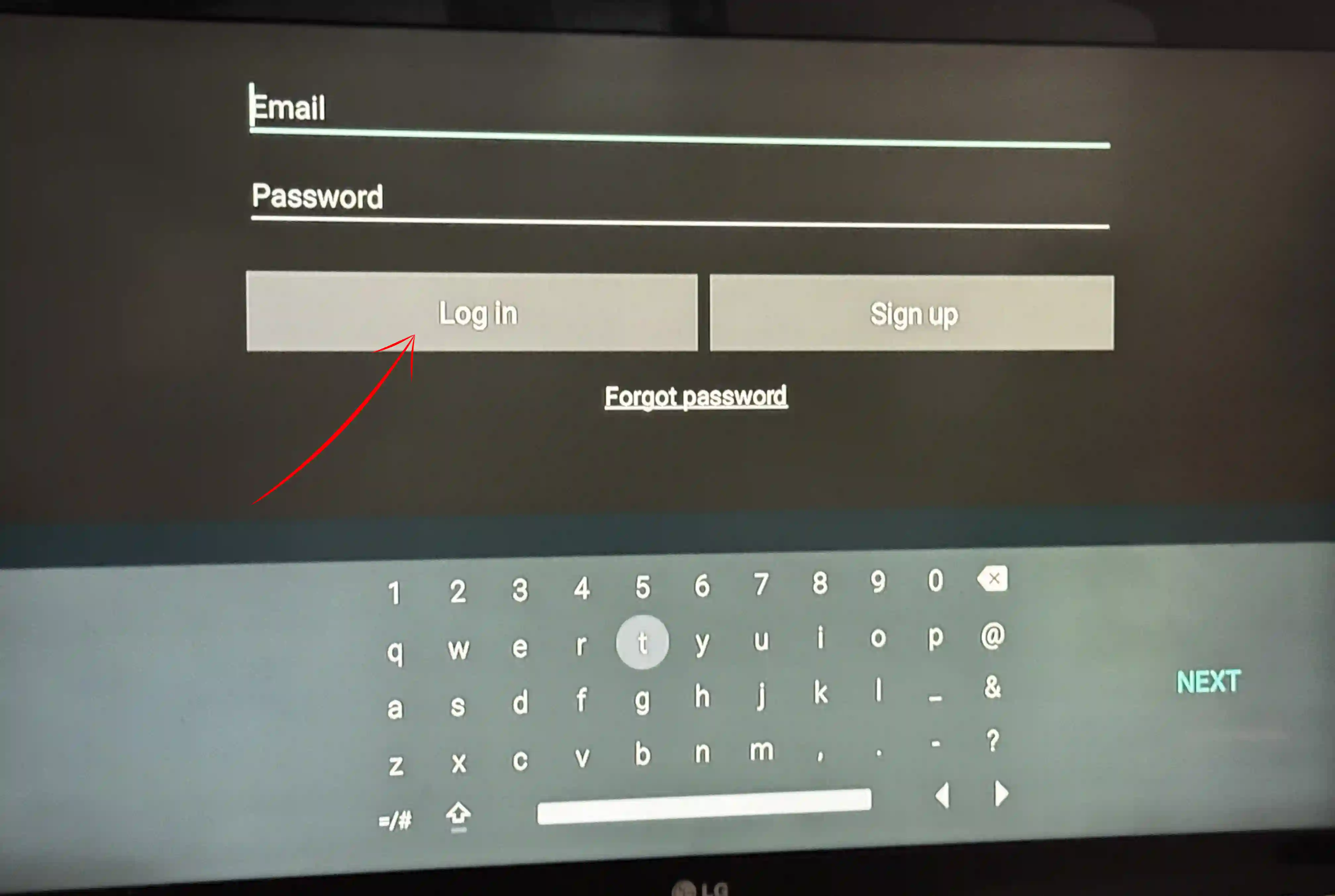
In TiViMate on your Android TV, open Settings and tap Unlock Premium. Enter your tivimate.com email and password. That's it, Premium is live.
-
You're on Premium
Everything unlocked on your Android TV. Multiple playlists, full EPG, recordings, multi-view and the app looking however you want it.
- Multiple playlists
- Full EPG guide
- Recordings
- Multi-view
- Custom skins
Setting up on another device?
Same playlist, a different screen. Pick the one you're using.
Got a question while setting up?
Message us your device and what you're seeing. We'll sort it, no charge.