How to set up Vivimate IPTV on Amazon Fire TV Stick
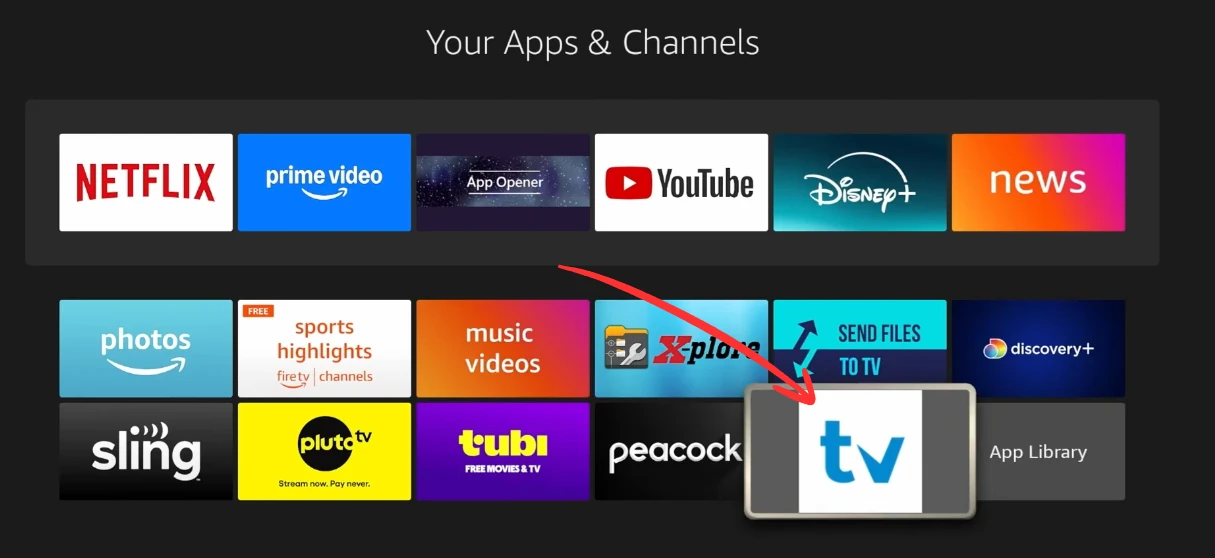
The Fire Stick can't pull TiViMate from the Amazon store, so it goes on through the Downloader app instead. Written out it looks long, but it's mostly clicking Next, in four short parts, and you never have to do it again.
Install the Downloader app
The Fire Stick can't pull TiViMate from the Amazon store, so the Downloader app fetches it instead.
- 1
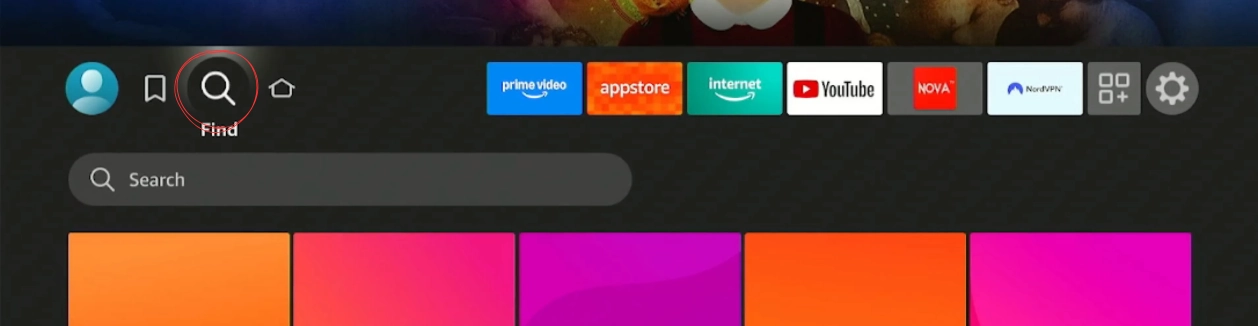
Search for Downloader
From the Fire TV home screen, open the search at the top left and type "Downloader". The orange app by AFTVnews is the one you want.
- 2
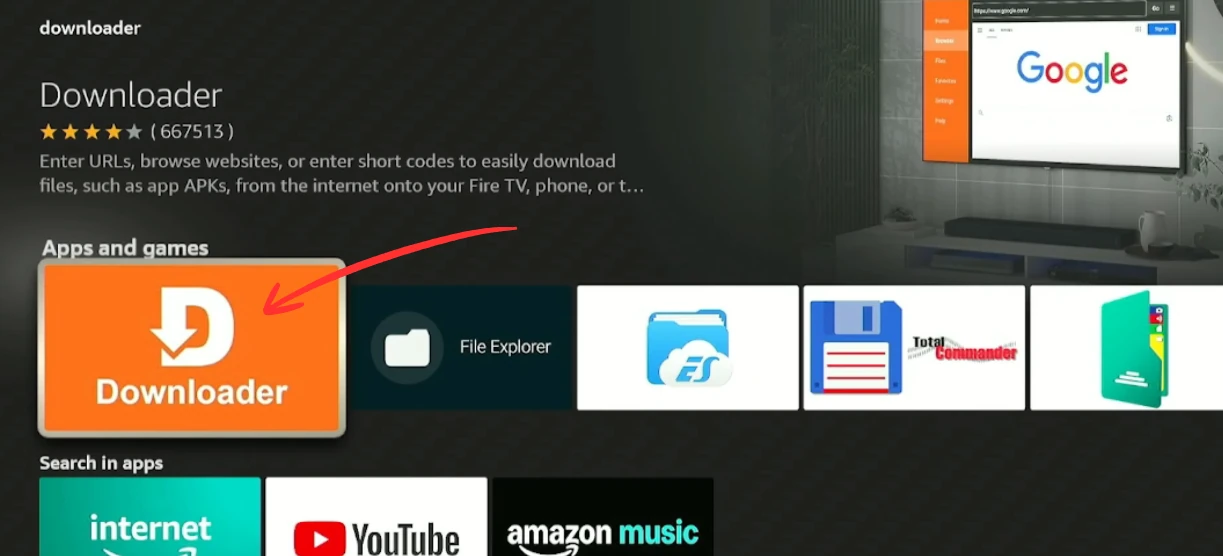
Install Downloader
Open the app page and press Download. It takes about half a minute. Leave it closed for now, you set up one permission first.
Turn on developer options
A handful of one-time switches that let the Fire Stick install an app from outside the store. You never touch these again.
- 3
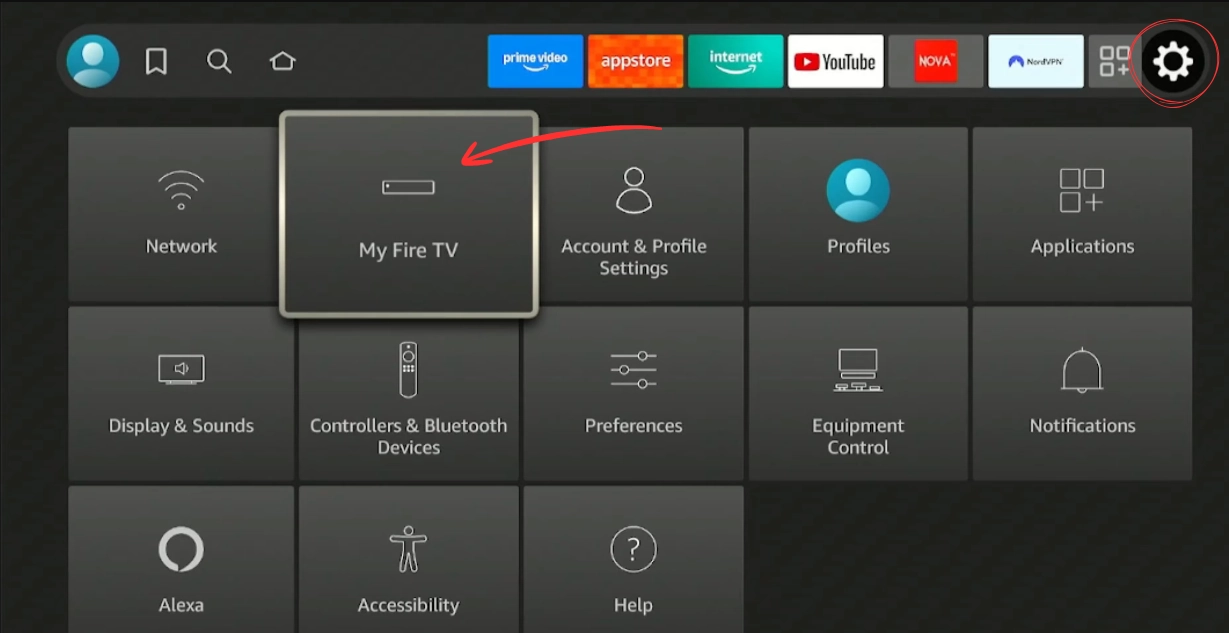
Open Settings, then My Fire TV
Go back to the home screen, open Settings (the gear), scroll across and choose My Fire TV. This is where the install permission lives.
- 4
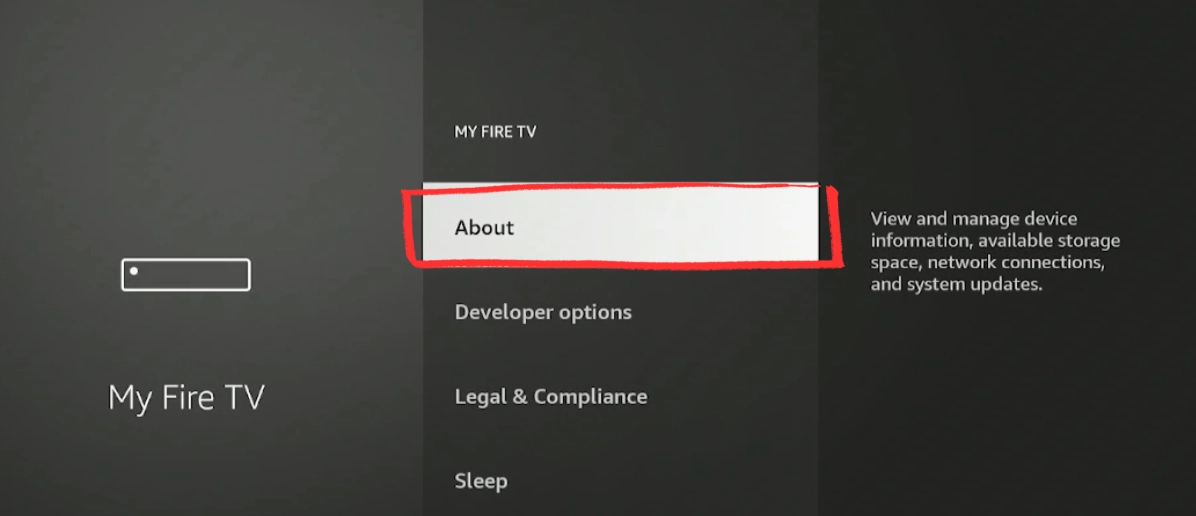
Open About
Inside My Fire TV, select About. This screen shows your model and software version, and it hides the developer switch.
- 5
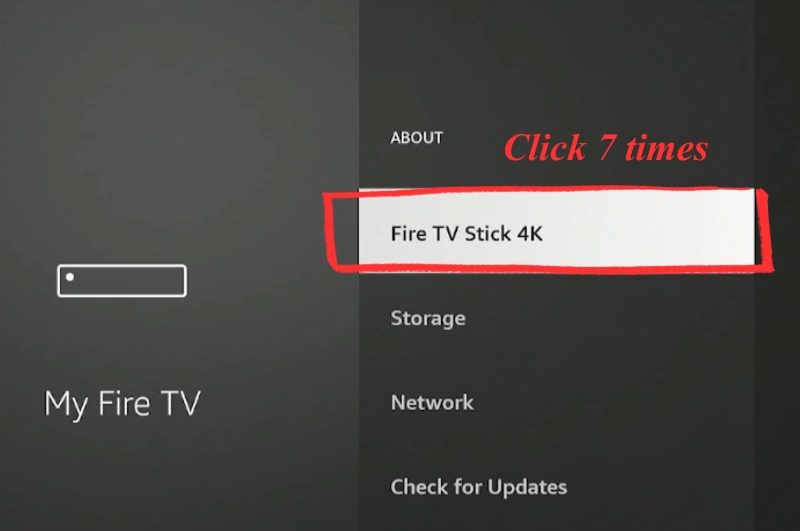
Click your device name seven times
Highlight the line with your device name and press it seven times in a row. A small counter shows up, then you see "You are now a developer".
- 6
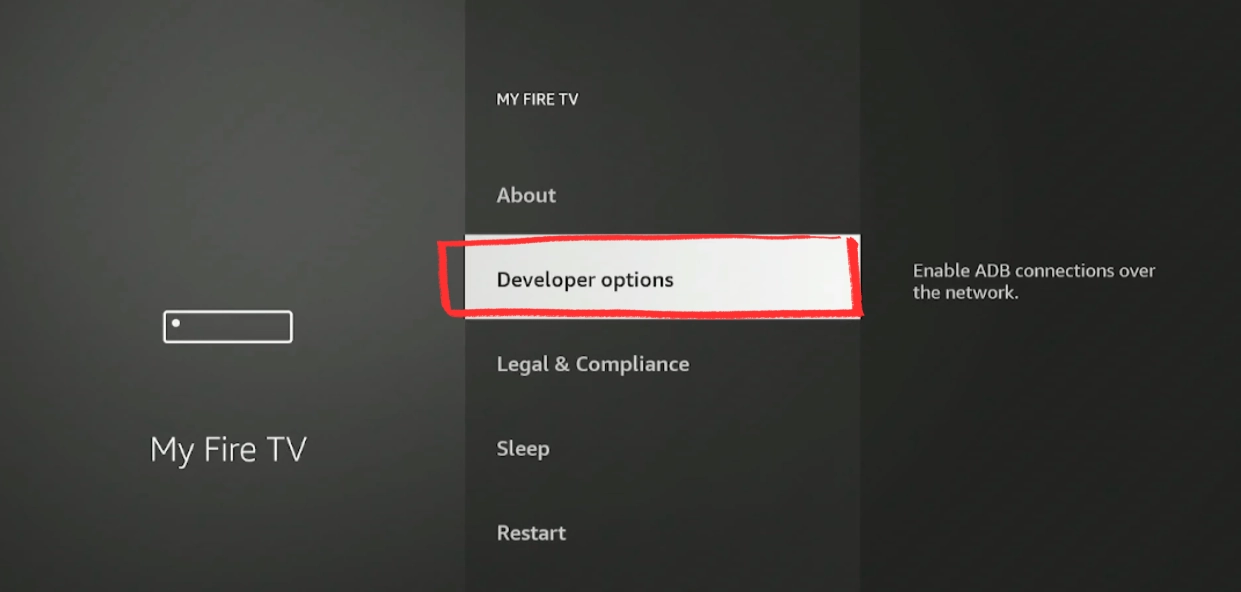
Open Developer Options
Press Back to return to My Fire TV. A Developer Options entry is there now that was not before. Open it.
- 7
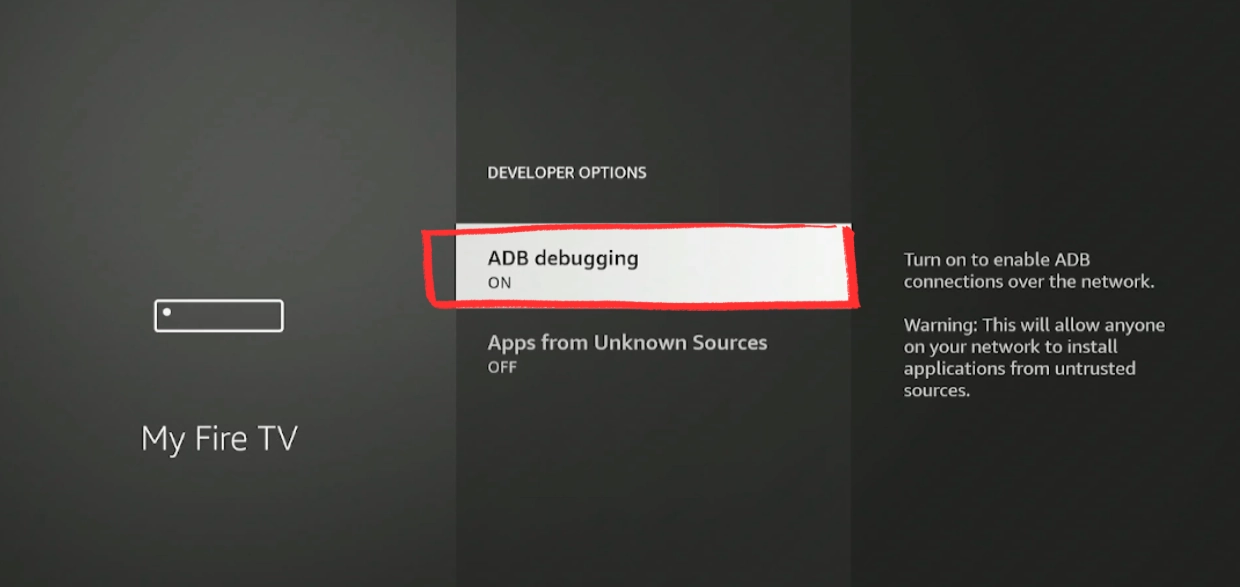
Turn on ADB Debugging
Find ADB Debugging and switch it on. The next permission only appears once this one is on, so do it first.
- 8
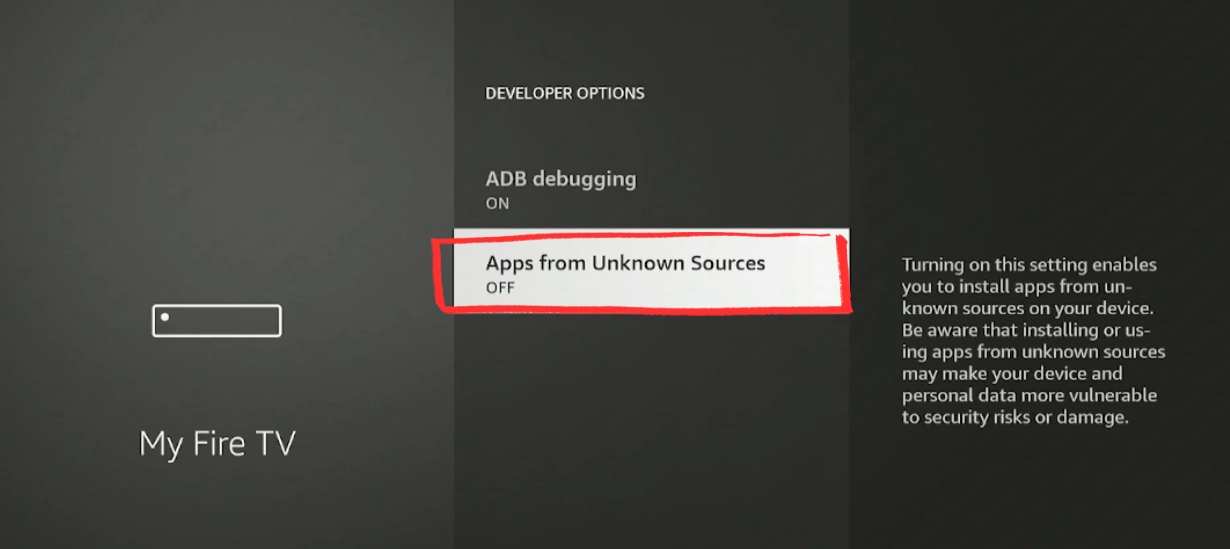
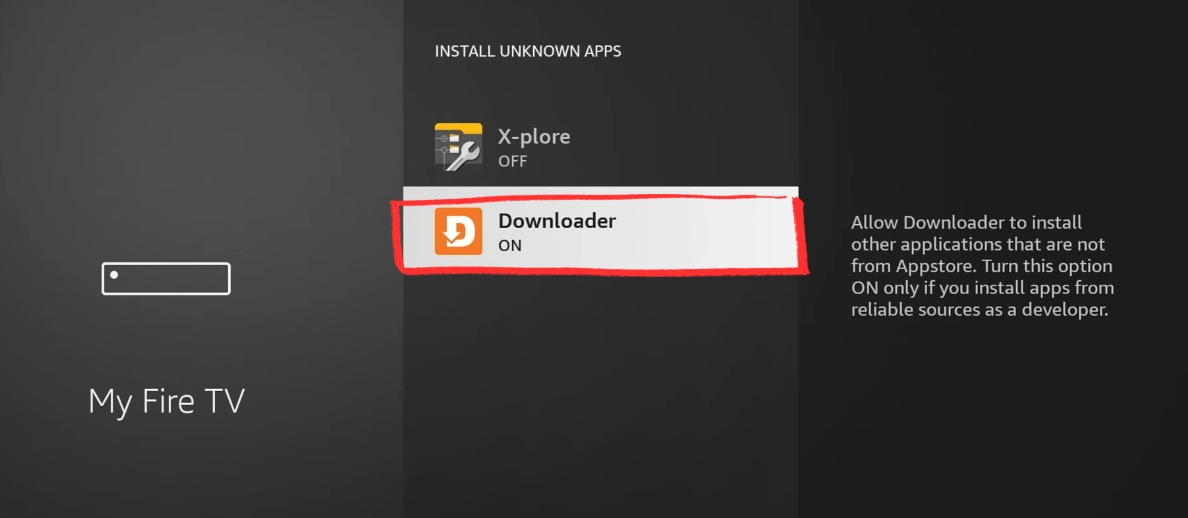
Open Install Unknown Apps
Press Back to return to Developer Options and open Install Unknown Apps. This is the list of apps allowed to install other apps.
- 9
Switch Downloader on
Find Downloader in the list and switch it on. That gives it permission to install the player you are about to download.
Download and install TiViMate
One short code does the work. Downloader fetches the latest TiViMate and walks you through the install.
- 10
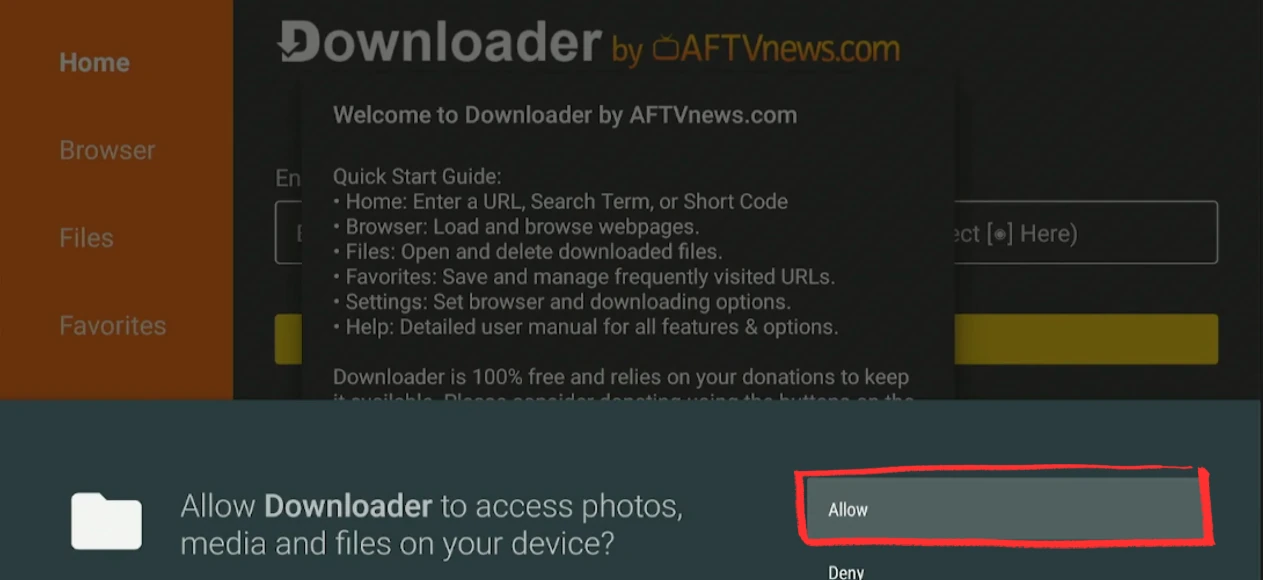
Open Downloader and allow access
Open the Downloader app. The first time it runs it asks to access files, so press Allow. Without it the download has nowhere to land.
- 11
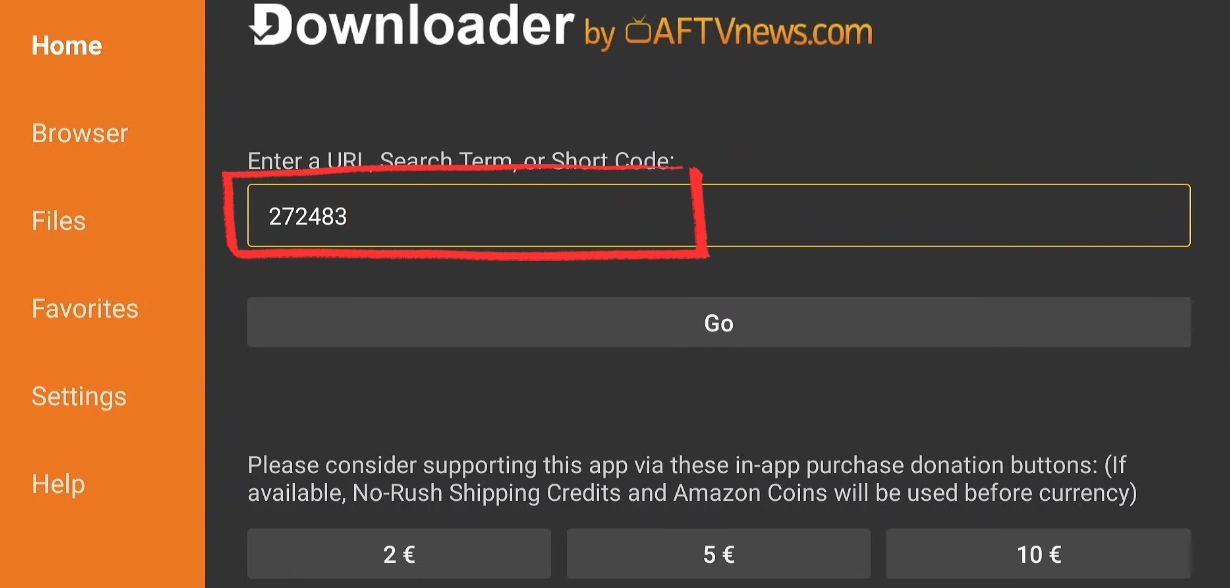
Enter the TiViMate code
In the Downloader URL box, type 272483 and press Go. That short code points straight to the latest TiViMate file and the download starts on its own.
- 12
Install TiViMate and open it
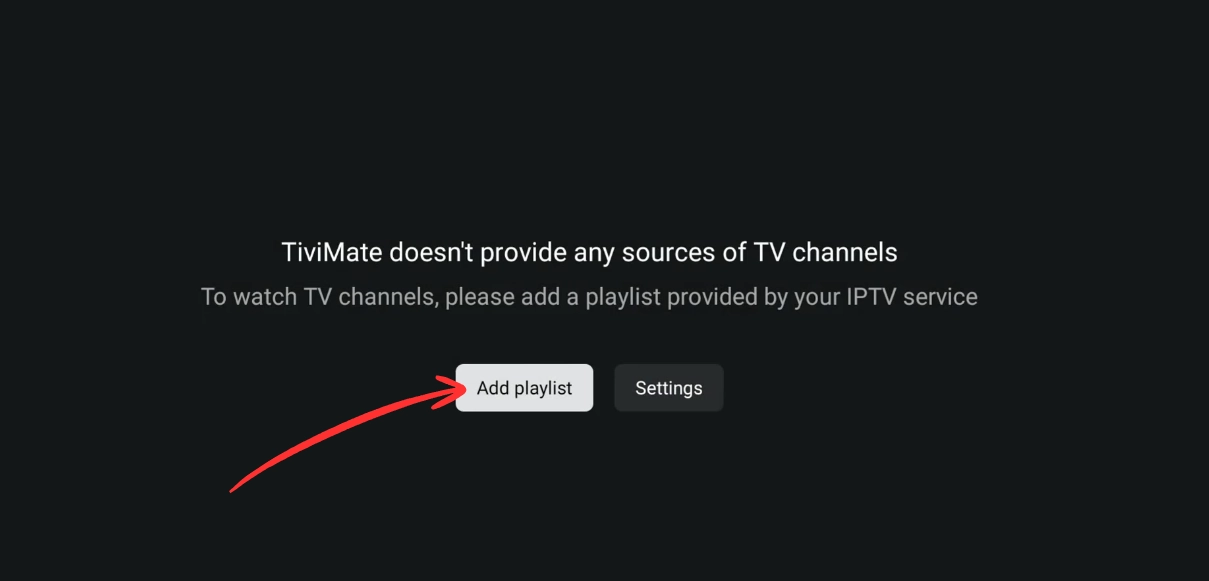
Accept the prompts, press Install, then Open. On first launch TiViMate goes straight to the Add Playlist screen.
Add your playlist and watch
The last stretch. Drop in the details we send you and the channels fill in by themselves.
- 13
Add your Vivimate details
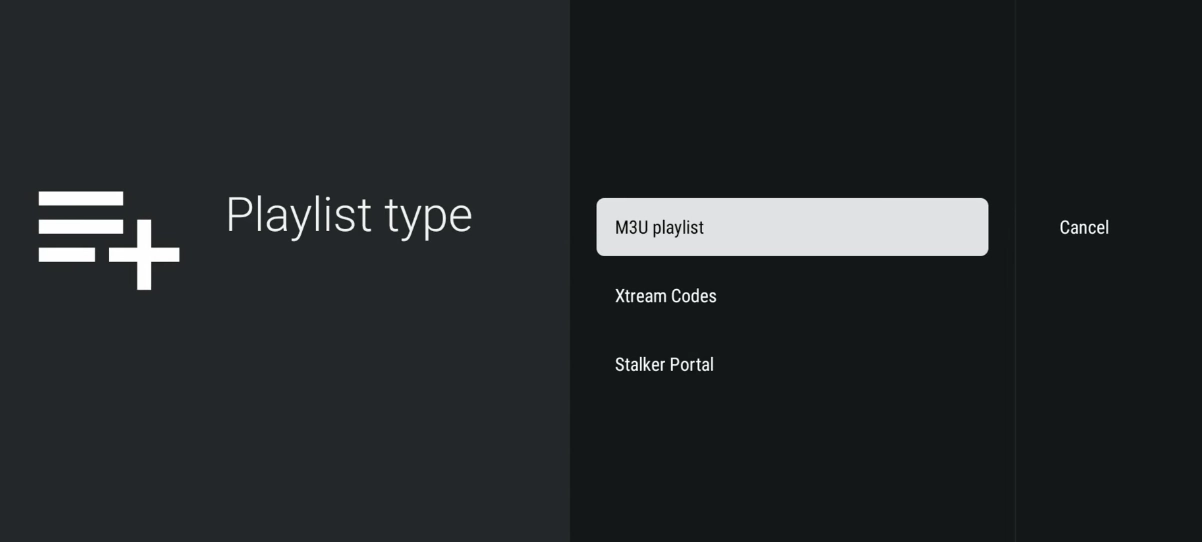
Choose Add Playlist, pick the type that matches the details we sent you, then enter them and press Done. Our message tells you which type to choose.
- 14
Watch
TiViMate pulls in the channels and builds the guide, which takes a minute or two. Once it fills in, you are watching.
How to set up TiViMate Premium
Free gets you in and playing, but you hit walls fast. The guide shows up empty, EPG settings are locked, and the app skin is fixed. Anything beyond basic playback (a second playlist, recordings, multi-view) needs Premium. You pay TiViMate directly, not us. Here is how to get it set up.
Billed once a year. A good starting point if you're not sure you'll use the extra features long-term.
Cheaper than four years of the annual plan. One payment, no renewals, locked in if the price goes up.
A single licence works across up to 5 devices.
How to get TiViMate Premium
- 1
Get your licence on tivimate.com
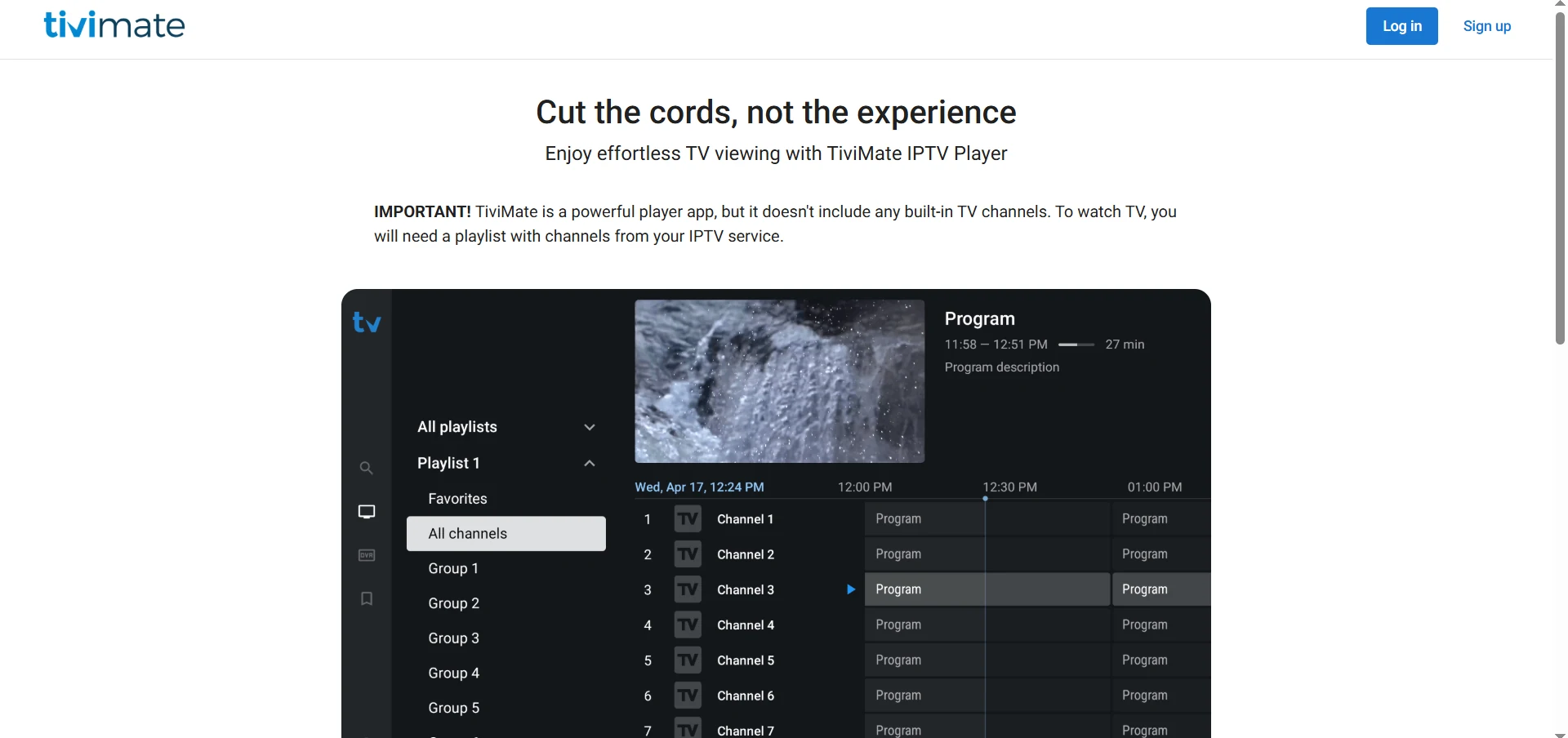
Head to tivimate.com and create a free account if you don't have one. Pick Annual or Lifetime and check out.
- 2
Activate on your Fire TV Stick
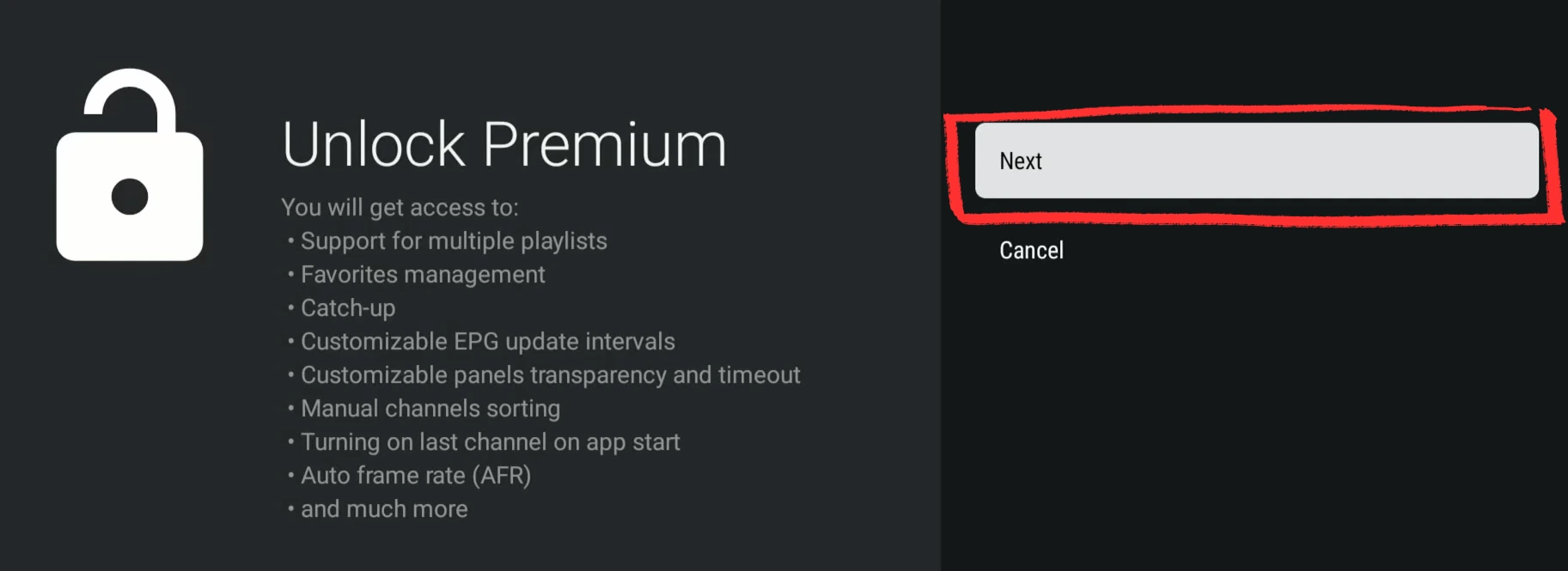
In TiViMate on your Fire TV Stick, open Settings and tap Unlock Premium. Enter your tivimate.com email and password. That's it, Premium is live.
-
You're on Premium
Everything unlocked on your Fire TV Stick. Multiple playlists, full EPG, recordings, multi-view and the app looking however you want it.
- Multiple playlists
- Full EPG guide
- Recordings
- Multi-view
- Custom skins
Setting up on another device?
Same playlist, a different screen. Pick the one you're using.
Got a question while setting up?
Message us your device and what you're seeing. We'll sort it, no charge.