How to set up Vivimate IPTV on a Samsung or LG smart TV
Samsung and LG smart TVs don't need a separate stick or box. IPTV Smarters Pro installs straight from the TV's own app store, then it's the same Xtream Codes login as every other device. Sony TVs are a different story since they run Android TV, so there's a note on those at the end.
Install IPTV Smarters Pro
It comes straight from the TV's own app store. No stick, no box, nothing to plug in.
- 1
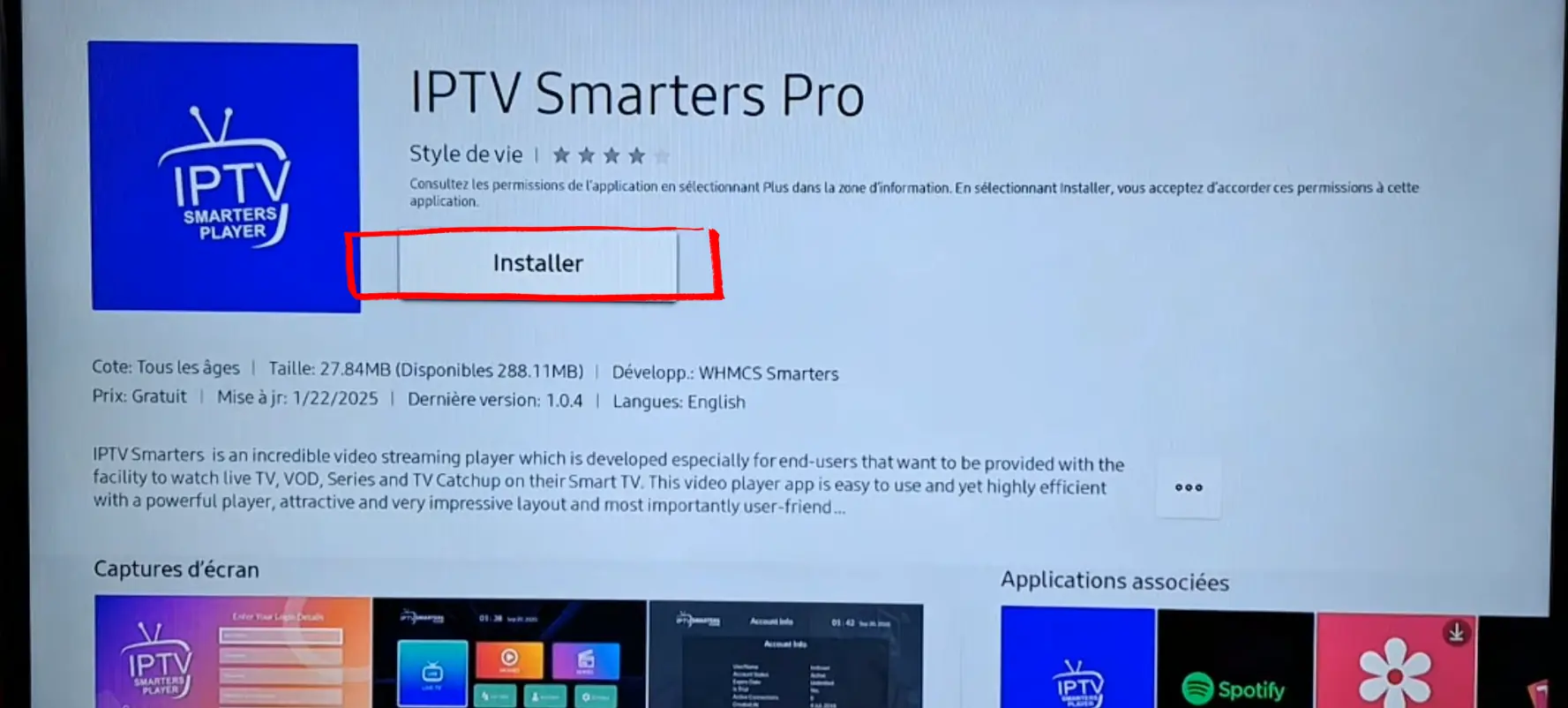
Find IPTV Smarters Pro in your TV store
On Samsung, press Home and open Apps. On LG, press Home and go to the Content Store. Search "IPTV Smarters Pro" and install the one by WHMCS Smarters. It is free and about 27MB. On older Samsungs it sometimes shows up under the Video category rather than appearing in the main search results.
Add your Vivimate playlist
Select Xtream Codes, type in the three details from our message, and the channels load on their own.
- 2
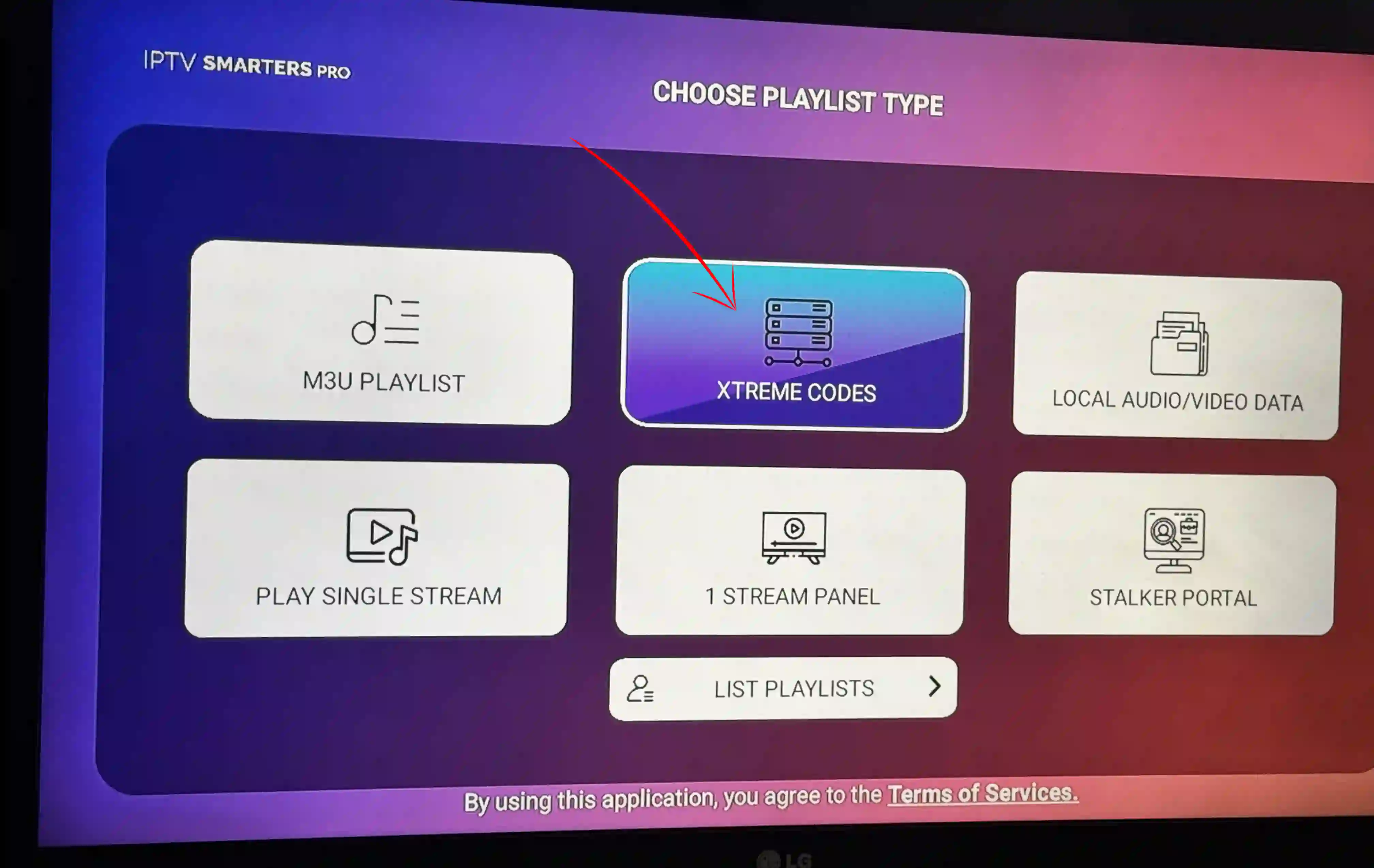
Choose Login with Xtream Codes API
Launch the app from your home screen. The first thing it shows is a choice of how to add a playlist. Use the remote to select Login with Xtream Codes API. That is the format that matches the details in our setup message.
- 3
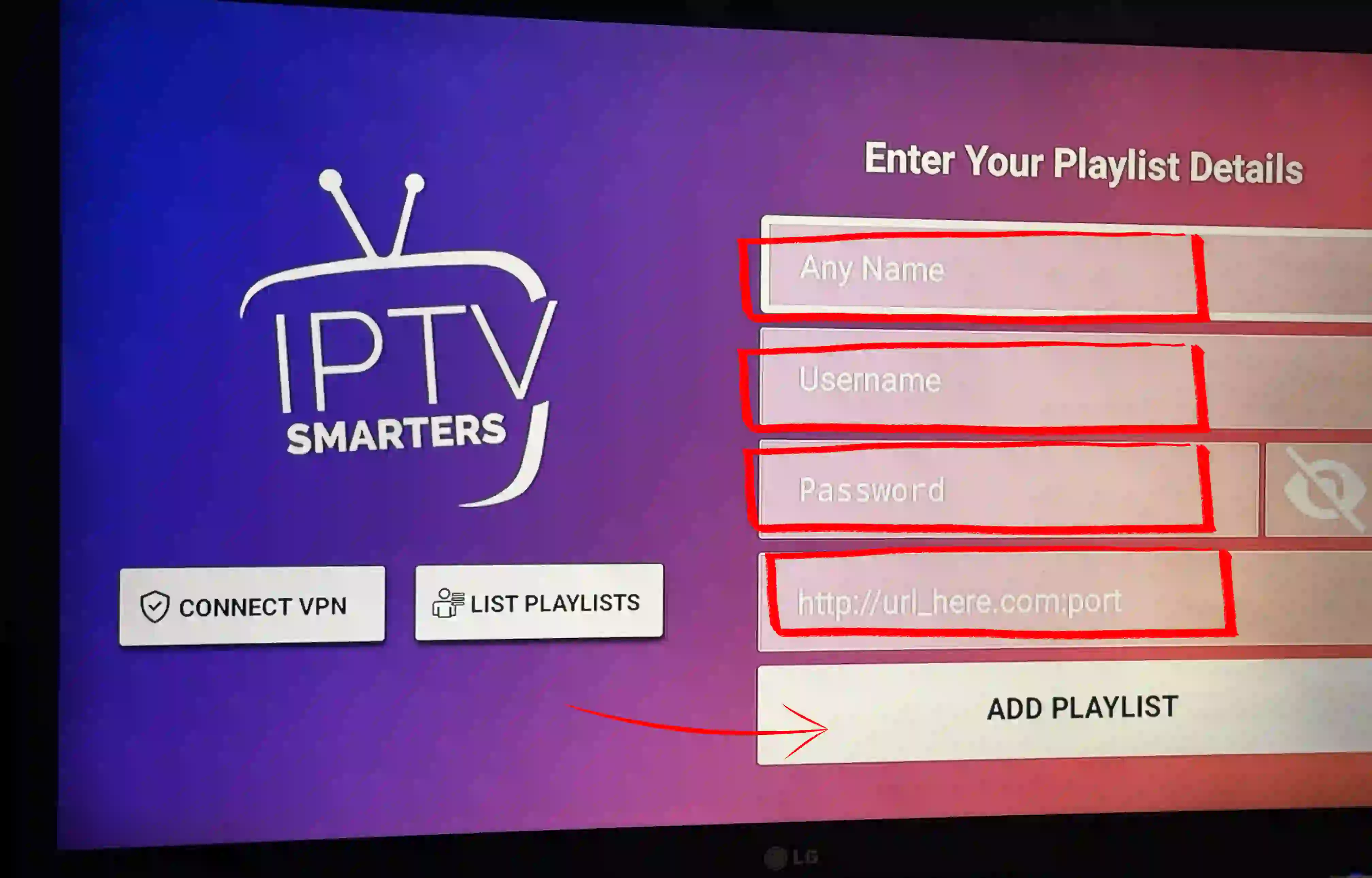
Type in your details and press Add User
Give the profile any name you like, then enter the username, password and server URL from our message using the on-screen keyboard. The keyboard on a TV remote is slow but you only do this once. Press Add User. The channels take a minute or two to come through on a full list.
Browse and watch
Live TV, Movies and Series all sit in their own sections. Arrow keys to move, OK to play.
- 4
Navigate with the remote and play
The app sorts everything into three sections: Live TV, Movies and Series. Move around with the arrow keys, press OK to play and Back to return to the list. EPG guide shows up in Live TV when you press the OK key on a channel. That is the full setup done.
Setting up on another device?
Same playlist, a different screen. Pick the one you're using.
Got a question while setting up?
Message us your device and what you're seeing. We'll sort it, no charge.