IPTV Smarters failed to authorize: how to fix it
Three different error messages, seven fixes, and one community-discovered trick most guides miss. If IPTV Smarters won't authorize your account, start here.
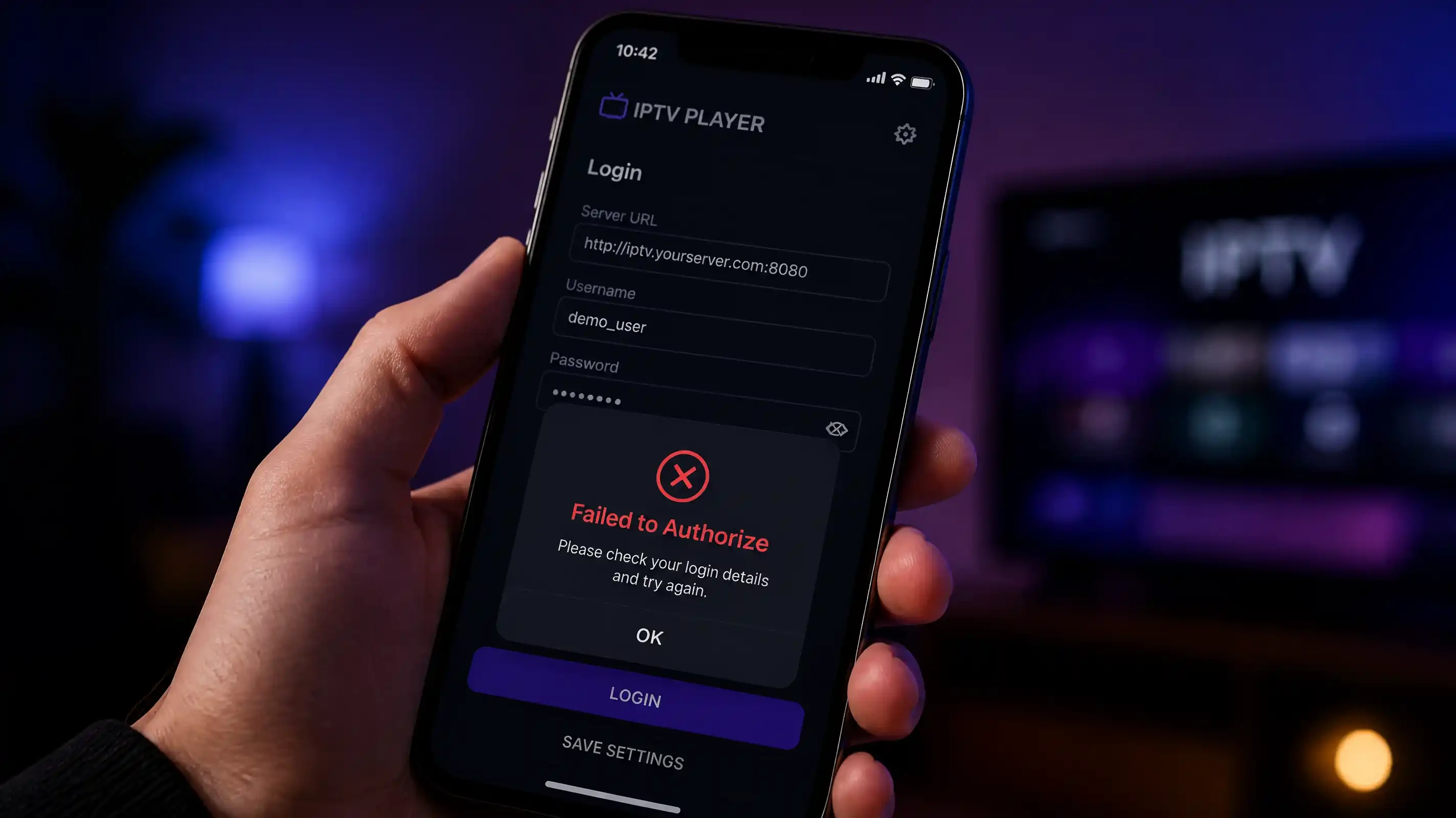
When IPTV Smarters refuses to authorize your account, you get one of three error messages. They look similar on screen. They do not point to the same cause.
Start by reading the exact message the app shows. That tells you what category of problem you are dealing with before you change anything.
Quick answer: Copy-paste your credentials rather than typing them. If that does not fix it, try changing your server URL from
http://yourserver.comtohttp:/yourserver.com(one slash after the colon, not two). Those two steps clear most authorization failures before anything more involved is needed.
What the error is actually telling you
“IPTV Smarters failed to authorize” is the general version. The app tried to connect to your provider’s server and the server rejected the login. The cause might be wrong credentials, a URL format problem, an expired subscription, or a server outage on the provider’s side.
“Authorization failed for above host” is more specific. The app names the exact server address that rejected the connection. This is useful because it confirms which URL the app is actually reading. If the address shown does not match what your provider sent you, a copy-paste error in the URL field is likely the cause.
“Authorization failed! Please ask your TV Service provider to get their DNS registered with App provider” appears alongside a QR code. This is a completely different problem from the other two. The fixes below will not help here. Skip to the DNS registration section.
Fix 1: Credentials (copy-paste, not typing)
Type a username by hand and you have a reasonable chance of a typo you will not catch visually. IPTV Smarters is case-sensitive: Username and username are different accounts on the server. Same with passwords.
Open the email or message your provider sent when you subscribed. Copy your username, password, and server URL one field at a time directly into the app.
While you are there, check which login method you have selected. Providers using Xtream Codes API send a username, password, and server URL as a set. Providers sending an M3U link expect a different input method. Having an Xtream Codes login but selecting “M3U URL” in the app will fail even with correct credentials. If you are unsure which your provider uses, ask them.
Fix 2: URL format, five variations to test
The server URL is the second most common source of authorization failures. Providers sometimes send URLs with formatting that certain app builds on certain TV models reject, even when the URL itself is correct.
Work through these in order:
- Remove trailing slashes:
http://server.com/becomeshttp://server.com - Add an explicit port. Try
:80, then:8080, then:8000. Use the port your provider specified if they gave you one. - Switch HTTP to HTTPS (or the reverse). Some servers only accept one protocol.
- Remove the
http://prefix entirely. On some Samsung builds, entering just the domain and port works when the full URL does not. - Try a single slash after the colon: change
http://server.comtohttp:/server.com
That last variation is technically a malformed URL. It works anyway on certain smart TV builds, particularly Hisense devices running VIDAA. The fix turned up in community forums where users had already tried every official solution, and it keeps appearing in comments confirming it still works a year later. If nothing else has helped so far, it takes 30 seconds to test.
Fix 3: Subscription status and connection limits
Two things can expire without any notification: your subscription renewal date, and your allowed connection count.
Most IPTV plans cap you at one or two simultaneous connections. If you added a new device without logging out of an old one, the server sees an extra login and blocks it as unauthorized. On your screen this reads as an authorization failure, but your credentials are technically fine. You have just exceeded the connection limit.
Contact your provider and ask two things: whether your account is still active, and how many active sessions are running under your account. Providers can see this on their end and drop old sessions to free up your slot.
To test the server URL directly before contacting anyone: copy your server address into a browser address bar on your phone or computer and press enter. A working IPTV server usually returns a page or an API response. A blank page or a “site not reachable” error tells you the server itself is offline, which puts the problem firmly on the provider’s side.
Fix 4: The DNS registration error
If your error message includes a QR code and text asking your provider to “get their DNS registered,” stop here. Adjusting credentials or URL format will not change anything.
IPTV Smarters Pro operates a DNS registration system between the app’s developer (Smarters Technology) and IPTV service providers. When a provider runs a server whose DNS is not in this system, the app rejects all logins from that server regardless of whether the credentials are correct. It is a whitelist, and your provider is not on it.
There is nothing you can do on your device to fix this. Contact your provider and ask whether they are registered with IPTV Smarters Pro. If they do not recognise the question, that is your answer.
While you wait for them to sort it out, two alternative player apps do not use this registration requirement: TiViMate and OTT Navigator. Both accept Xtream Codes and M3U credentials directly and work with any IPTV subscription.
Fix 5: Network, ISP, and DNS settings
Some ISPs filter IPTV traffic at the network level. The result on your end is an authorization error rather than an obvious blocked-site message.
The fastest test: disconnect from WiFi and connect through your phone’s mobile hotspot. If the app authorizes on mobile data but fails on WiFi, your home ISP is filtering the traffic.
From there:
- Use a VPN on WiFi. Connect to a server in a nearby country and test again.
- Change your DNS settings on the TV. Open Network Settings, find the DNS field, and replace whatever is there with
8.8.8.8(Google) or1.1.1.1(Cloudflare). Restart the TV and test. - If you are already running a VPN and the error is happening, try disabling it. Some providers block known VPN IP ranges at the server level.
Fix 6: Device-specific steps
Hisense (VIDAA OS)
Hisense TVs run VIDAA, not Tizen or Android. IPTV Smarters Pro was not built with VIDAA in mind, and the app’s behavior on Hisense is genuinely inconsistent compared to other platforms. For Hisense specifically, start with the single-slash URL trick from step 5 in Fix 2. That variation has the most community confirmation on VIDAA devices.
If that does not help, go to Settings, find IPTV Smarters Pro under Applications, and clear both cache and data. Enter your credentials again from scratch. If the error persists, some users have had success sideloading an older APK version. Ask your provider’s support which version they would recommend for Hisense.
Samsung (Tizen)
Tizen’s handling of the http:// prefix varies across TV models and firmware versions. Along with the URL format variations from Fix 2, check whether a TV software update installed around the time the error started. Tizen updates occasionally break IPTV app authentication without any obvious warning.
If IPTV Smarters Pro keeps failing on a Samsung TV, IBO Player Pro is a compatible alternative that installs from the Samsung app store and handles Tizen more reliably.
LG (webOS)
webOS is generally more stable than Tizen for IPTV apps. Authorization failures after an update usually clear with an uninstall and reinstall from the LG Content Store. If the error appeared without any update, check your TV’s DNS settings. Some LG models override custom DNS entries with the ISP’s defaults, which can reintroduce the network filtering problem even after you have set it manually.
Firestick and Android TV
These are the most compatible environments for IPTV Smarters Pro. Authorization failures here almost always point to credentials or the server, not the device itself. Go to Settings, then Applications, find IPTV Smarters Pro, and clear cache and data. Re-enter your credentials from your provider’s original setup message. If the error continues after that, the problem is on the server side.
For Firestick setup with any IPTV service, the full Fire Stick setup guide covers the steps from app installation through to first login.
Fix 7: When it’s your provider
If you have gone through the above and nothing has changed, the error is coming from your provider’s end. There is nothing left to adjust on your device.
Signs that point to the server side:
- The same credentials work on one device but fail on another
- The error started suddenly with no changes on your end
- Your provider’s support has not responded in more than 24 hours
- Your provider has one server URL and no backup address
- Other users of the same service are reporting the same error at the same time
A provider with solid infrastructure keeps at least two server addresses active, communicates planned downtime in advance, and responds to support within a few hours. One that cannot tell you what is wrong or when it will be fixed is a reliability problem that adjusting app settings will not solve.
Want to test a service that’s actually up? If your current provider is down and you do not want to wait, Vivimate offers a free trial with no card required. You get a real playlist loaded on your own device (not a demo), set up over WhatsApp, usually the same day. Request your free trial.