IPTV and Android Box: Full Setup Guide
IPTV and Android box work together to replace cable with live TV over the internet. Here's how to pick the right box and install your service. Full guide.
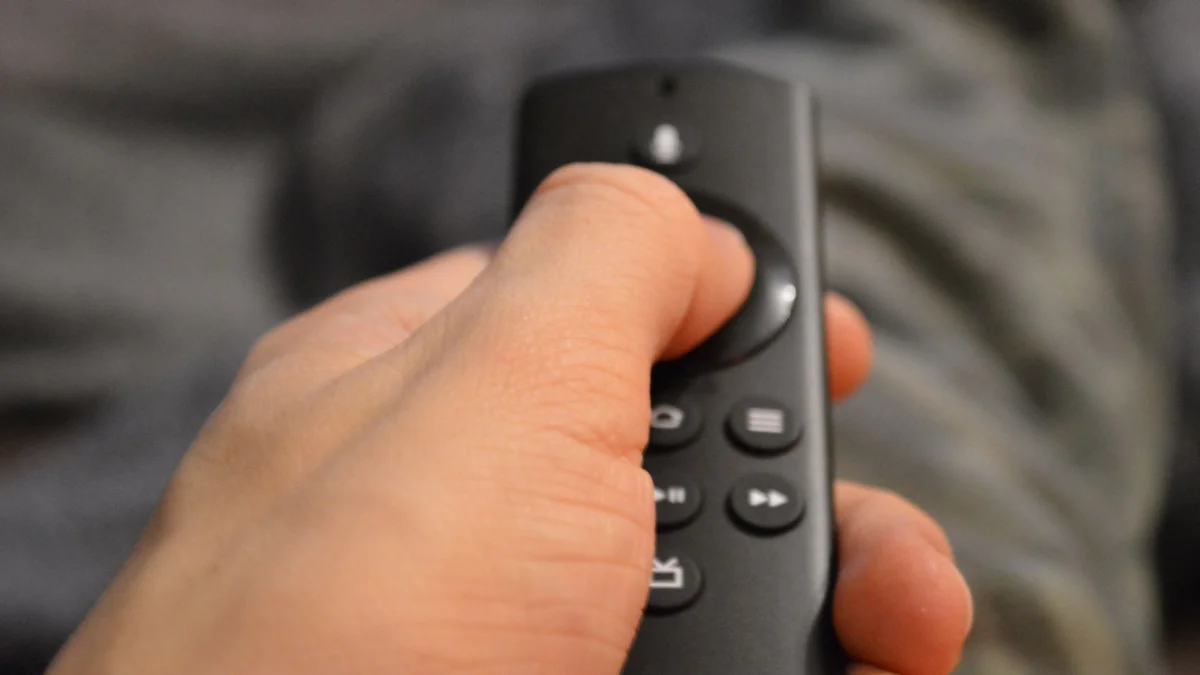
An Android box running a licensed IPTV subscription is one of the simplest ways to cut a cable or satellite package entirely. The combination of IPTV and Android box gives you live TV, sports, and on-demand content on any screen with an HDMI port. Get the pairing right, and you have a complete cable replacement.
Why IPTV and Android box work well together
IPTV delivers channels over your internet connection rather than a coaxial cable. An Android box decodes those streams and puts them on your television. The combination works because Android boxes run a full operating system, which means you can install whichever IPTV player you prefer, manage playlists, and switch providers without touching the hardware.
Smart TVs have locked app stores that frequently lack the specific IPTV apps you actually need. A dedicated Android box removes that problem entirely. You also get considerably more processing power than most budget smart TVs, which matters once you start pulling in 4K streams or loading channel lists with thousands of entries.
Choosing the right Android box for IPTV
Not every Android box handles IPTV equally well. There are two main categories worth understanding before you spend any money.
Android TV OS vs stock Android
Android TV OS (or Google TV, its successor) is built for televisions. It has the Google Play Store, voice search through Google Assistant, and proper remote control support. Most IPTV apps publish to the Play Store, so installation is straightforward.
Stock Android boxes run a phone-style Android build. They work, but sideloading apps is more involved and the interface feels awkward on a TV screen.
For most people, Android TV OS is the practical pick.
Hardware specs that actually matter
For IPTV playback, the specs below matter more than brand names:
- RAM: 2 GB is the minimum. 4 GB keeps the player stable when you’re switching channels quickly or running EPG data in the background.
- Storage: 8 GB is fine for a single IPTV app. If you plan to install multiple apps or download content, aim for 16 GB or more.
- Processor: Any quad-core ARM chip from a reputable manufacturer handles 1080p IPTV without issue. For 4K HDR streams, check that the box explicitly supports H.265/HEVC decoding.
- Networking: A built-in Gigabit Ethernet port is worth prioritizing. Wi-Fi works, but a wired connection eliminates a whole category of buffering problems before they start.
Common boxes people use in 2026 include the NVIDIA Shield TV Pro for high-end setups, the Chromecast with Google TV for budget builds, and the Formuler Z10 Pro if you want something designed specifically around IPTV use.
How to set up IPTV on an Android box
The process takes about ten minutes once you have your subscription credentials in hand.
Step 1: Connect the box
Plug the Android box into an HDMI port on your TV. Connect power, then connect to your network. Ethernet is preferable. If you use Wi-Fi, position the box within a clear line of sight to your router.
Step 2: Install an IPTV player
Open the Google Play Store and search for your preferred player. TiviMate is the most widely used option for Android boxes. It handles large M3U playlists efficiently and has a clean EPG layout. IPTV Smarters Pro and GSE Smart IPTV are free alternatives worth considering.
Step 3: Add your playlist
Your IPTV provider will give you either an M3U URL or an Xtream Codes login (a server URL, username, and password). In TiviMate, go to Add Playlist and enter whichever format your provider uses. The app loads your channels and EPG guide automatically.
Providers like Vivimate supply these credentials immediately after subscribing, which removes the wait that used to frustrate new users.
Step 4: Organize channels and test
Once the playlist loads, browse to a live channel and let it run for a minute. No interruptions means your setup is working. Immediate buffering, on the other hand, usually points to an internet speed issue first. Speed requirements vary by provider and codec, but 1080p streams typically need a stable connection in the range of 10 Mbps, and 4K streams generally need more, check with your provider for their specific recommendations.
Common IPTV and Android box problems, solved
Most issues fall into a few predictable categories.
Buffering
Buffering is the most common complaint, and the fix depends on the cause:
- Switch from Wi-Fi to Ethernet if possible.
- Clear the cache inside your IPTV app (Settings, then Clear Cache).
- Try a different stream quality if your provider offers multiple.
- Contact your provider if the problem is isolated to specific channels, since that points to a server issue on their end rather than anything you can fix locally.
App crashes
If the IPTV app crashes on launch or when loading a playlist, the most likely cause is insufficient RAM or an outdated app version. Update through the Play Store and restart the box. If crashes persist, check whether a firmware update is available for the device itself.
EPG not loading
The Electronic Programme Guide requires a separate URL in some apps. Your provider should supply one alongside the M3U link. In TiviMate, go into playlist settings and add the EPG URL there. Allow up to fifteen minutes for the first load on a large guide.
Staying legal: What to look for in a provider
The Android box itself is legal hardware. The legality of your IPTV use depends entirely on who provides the content. A licensed service has actual agreements with the broadcasters whose channels it carries. An unlicensed one does not, and using it carries legal exposure in most countries.
Before subscribing, look for a provider that can point to licensing, publishes clear terms of service, and has a real support channel. If a service is offering hundreds of premium sports channels for a few dollars a month with no verifiable company behind it, that’s a warning sign worth taking seriously.
Vivimate is a licensed provider that addresses this clearly on its site, which makes it a straightforward option if you want to avoid the uncertainty that comes with unlicensed services.
Frequently asked questions
Do I need a subscription to use IPTV on an Android box? Yes. The Android box is just hardware. You need a separate IPTV subscription from a licensed provider to access live channels and VOD content.
Which Android box works best with IPTV in 2026? Boxes running Android TV OS tend to work best because they support the Google Play Store, making it easy to install IPTV apps. The NVIDIA Shield, Chromecast with Google TV, and Formuler Z10 Pro are commonly used choices.
Can I use a free IPTV service on my Android box? Free IPTV services exist, but most are unlicensed, unstable, and carry legal risk. A paid, licensed subscription gives you reliable streams and proper customer support.
Why does IPTV buffer on my Android box? Buffering usually comes from a slow connection, Wi-Fi signal problems, or an overloaded server on the provider’s end. Switching to a wired Ethernet connection and clearing the app cache solves most cases.
What IPTV app should I install on my Android box? TiviMate is the most popular choice for Android boxes because it handles large channel lists cleanly and supports EPG guides. IPTV Smarters and GSE Smart IPTV are solid alternatives.